
Key Takeaways
Learn how WhatsApp Webview turns chats into structured mini-apps for shopping, onboarding, and service workflows.
See common Webview challenges and practical fixes for UX, performance, and session reliability across devices.
Understand how Flowcart connects Webview, carts, and automation to drive in-chat payments and higher WhatsApp revenue.
Brands keep investing in WhatsApp, but the limitations become obvious once you try to run anything beyond a simple message flow. Product discovery, checkout steps, service tasks, and every other action fall apart the moment your customer leaves the chat.
WhatsApp Webview introduces an alternate approach. It lets you run structured, app-like screens inside WhatsApp, so users don’t need to jump between tabs or apps to finish a task.
Teams use it to run complete shopping flows, collect data, manage account actions, or guide customers through multi-step journeys in one place.
This guide explains how WhatsApp Webview integration works, what it enables, and what teams need to know before working with it.
How WhatsApp Webview Integration works
- A Webview opens through buttons or template URLs and loads a responsive web app directly inside WhatsApp’s in-app browser.
- The WhatsApp Cloud API sends these messages, syncs user actions, and keeps the backend and chat logic connected.
- User context is passed through secure tokens, so each screen loads the right cart, form, or session state.
Key features and benefits for businesses
- Supports complete workflows, including shopping, bookings, onboarding, KYC, and document submissions, without leaving WhatsApp.
- Improves conversions by pairing high-intent messaging with a structured in-chat UI for catalog browsing, checkout, or service tasks.
- Reduces operational overhead by centralizing discovery, data capture, and payments through a single channel, enabling better tracking and faster resolution.
How it differs from WhatsApp Web
- Webview runs inside the mobile app to power in-chat mini-apps, while WhatsApp Web is a desktop interface for messaging.
- Webview supports custom HTML/JS experiences tied to automation and backend logic; WhatsApp Web does not host or render any custom UI.
- Webview is built for transactional and interactive journeys, whereas WhatsApp Web is purely a messaging extension.
What is WhatsApp Webview Integration?

WhatsApp Webview integration lets businesses open a full web page inside the WhatsApp app instead of sending users to an external browser. The page uses standard HTML, CSS, and JavaScript, but it loads in a contained window within the chat so the user stays inside WhatsApp throughout the task.
Here’s how the pieces of WhatsApp mini app integration fit together:
What the webview is: WhatsApp webview is an in-app browser window that can display product pages, forms, dashboards, or any custom UI. When a user taps a button or link sent via WhatsApp, the URL opens in this chat window rather than Chrome or Safari. After they finish the task, like submitting a form or adding an item to cart, they return directly to the conversation.
Where the WhatsApp Cloud API fits: WhatsApp Cloud API sends the message that contains the link, tracks actions taken in the mini-app (such as order updates or form submissions), and keeps the conversation flow aligned with what the user does in the webview. The API handles state, logic, and communication between systems.
Together, the in-app webview and the Cloud API create space for mini-apps inside WhatsApp. Brands use this pattern to run:
- shopping flows with variants, carts, and checkout
- booking flows with calendars or configuration steps
- service tasks such as returns, claims, document upload, or KYC
- personalized quote or onboarding journeys
To sum it up, the UI runs in the webview; the workflow runs on the backend and through the Cloud API. Users complete multi-step actions without leaving WhatsApp, and teams get room to build richer, app-like flows without a native app.
Also Read: WhatsApp Lead Generation: Proven Strategies to Drive High-Quality Leads
Why Businesses Are Shifting to Webview Experiences on WhatsApp?
Businesses are moving to WhatsApp Webview setup because they convert better and remove the friction caused by switching between apps. A rich UI inside the chat gives teams room to run full shopping, service, and data-capture flows without breaking the user’s momentum.
Here’s a breakdown:
- Higher conversions and revenue
E-commerce teams use WhatsApp Webview setup to show catalogs, variants, and carts with checkout built into the same thread. These flows often pair a high-intent conversation with a usable UI instead of static links, increasing conversation rates in the process.
- In-chat payments without context loss
Webviews allow payment steps to happen inside WhatsApp rather than on an external site. Address collection, payment selection, and confirmation stay within the same flow, reducing drop-offs that usually happen right before checkout.
- Better UX for complex tasks
Messaging alone makes multi-step tasks hard to follow; Webviews add structure. Industries like insurance, airlines, banking, and retail use them for document upload, seat selection, order tracking, and appointment scheduling. Users complete tasks faster, and support teams spend less time fixing broken flows.
- Personalization with automation around it
Webviews can open with user-specific context, such as carts, profiles, or shipment IDs. In this case, automation tools handle the surrounding conversation while the UI handles the structured parts of the journey. This pairing supports customized recommendations, dynamic forms, and targeted offers at scale.
- Operational efficiency and better analytics
Running discovery, selection, data capture, and payment inside WhatsApp reduces channel fragmentation. Many setups also add event tracking, allowing teams to see drop-off points and test improvements without rebuilding the entire flow.
- Trust, security, and long-term positioning
Users are comfortable completing sensitive actions inside WhatsApp’s secure environment. As WhatsApp moves closer to a “super-app” model for business flows, early adopters gain an advantage in acquisition, service, and retention.
How to Integrate Webview in WhatsApp
Integrating a WhatsApp Webview setup into WhatsApp means linking your WhatsApp Business flow to a web page that opens inside WhatsApp’s in-app browser and then syncing whatever the user does there back to your backend. WhatsApp controls the browser container; you control everything inside it through standard web technologies.
Here’s how you can integrate Webview in WhatsApp:
Step 1: Set up your WhatsApp Business environment
Prepare the core infrastructure to send the messages and URLs that trigger the WhatsApp mini app integration.
- Access the WhatsApp Business Platform through the Cloud API or a BSP.
- Configure your business profile, phone numbers, and message templates.
- Set up a backend or bot platform to send and receive WhatsApp messages through the API.
Step 2: Build the Webview experience
Create a web application that will open inside the WhatsApp in-app browser.
- Use responsive, mobile-first HTML/JS or frameworks like React or Vue.
- Map your flow clearly: product selection, forms, document upload, checkout, or account tasks.
- Add logic to read tokens or URL parameters so the Webview loads the right user/session state and connects to your backend APIs.
Step 3: Link your WhatsApp messages to the Webview URL
Add the entry points in the conversation that trigger the in-app browser.
- Use interactive messages with buttons or CTAs pointing to your Webview URL.
- When tapped, WhatsApp opens the link inside the chat instead of a default browser (where supported).
- Bot builders often expose this as an “Open URL” or similar action you can attach without custom code.
Step 4: Pass and track user context
Keep the Webview in sync with the flow and maintain continuity across sessions.
- Keep the Webview in sync with the flow and maintain continuity across sessions.
- Use the token to fetch user-specific data when the Webview loads.
- Track Webview events server-side and send updates back to WhatsApp via the Cloud API when needed.
Step 5: Design for WhatsApp-specific UX constraints
Optimize loading, layout, and performance for an in-chat environment.
- Reduce heavy scripts and optimize images to keep load times short.
- Design for a single, vertical viewport since users stay in “chat mode.”
- Test across devices and OS versions; some setups may open the link in a full browser.
Step 6: Roll out securely and iterate
Launch a controlled version of your WhatsApp Webview flow and expand once the performance is clear.
- Host your Webview on HTTPS and follow WhatsApp Business policies and local data rules.
- Start with a small, contained use case and measure completion and drop-off rates.
- Improve stability, refine screens, and scale to richer mini-app journeys as results validate the approach.
Once the backend, UI, and Cloud API logic work in sync, brands can run structured, app-like journeys that feel natural inside the messaging interface. However, before scaling these flows, it helps to understand the friction points teams often hit during implementation.
Also Read: Why WhatsApp is the Future of Conversational Commerce
Common Challenges in WhatsApp Webview Integration
Businesses usually hit a few common hurdles when they start building Webview flows on WhatsApp. Most of them come from platform limits, device differences, and the effort needed to keep the Webview and chat logic aligned.
Let’s have a look at them:
1. Limited control over the in-app browser
The in-app browser has fixed behavior. You can’t adjust how it looks, how it handles navigation, or how it opens other apps. The WhatsApp Business API also limits when you can send certain messages or template links, which affects where the Webview can appear in a flow.
✅Fix it: Build flows that don’t rely on custom navigation or deep browser control. Place Webview steps at points where templates are allowed and session windows are active, and handle all navigation within the Webview itself rather than relying on WhatsApp UI elements.
2. Inconsistent behavior across devices
The Webview doesn’t behave the same on every device. Some users get the in-app view, while others are pushed to the phone’s main browser. Back button actions, half-completed screens, or notifications can behave differently on Android and iOS.
✅Fix it: Design flows that work the same in both environments. Keep layouts simple, avoid relying on WhatsApp-specific navigation, save progress server-side, and make sure every step can recover cleanly if the user reopens the flow in a different browser or after a notification break.
3. Performance and loading issues
Slow or heavy pages feel worse inside WhatsApp. If hosting is slow or the page loads too many scripts, the Webview becomes laggy or times out. Users often assume WhatsApp is broken, even when the slowdown is caused by the page itself.
✅Fix it: Keep the Webview light. Optimize images, reduce script size, limit third-party libraries, and use a CDN for faster delivery. Test on slower networks to confirm the page loads quickly enough for an in-chat experience.
4. State and session mismatches
Keeping state consistent is a common failure point. The Webview needs a valid token or identifier to load the right user session. If that token expires or isn’t passed correctly, users see empty carts, outdated data, or repeated steps.
✅Fix it: Generate short-lived, secure session tokens and pass them consistently through URL parameters or headers. Validate tokens on every load, refresh them when needed, and store key progress server-side so users can return to the same point even if the session resets.
5. Compliance and data handling risks
Compliance and data handling require care. Even though WhatsApp is encrypted, your Webview still needs to handle cookies, IDs, and form data in line with GDPR or local rules. Analytics setups can accidentally capture sensitive identifiers if not configured correctly.
✅Fix it: Limit the data you store in the Webview, secure all requests with HTTPS, and separate personal identifiers from analytics events. Review tracking tools to prevent accidental logging of sensitive fields, and align all data flows with your compliance team before rollout.
6. Harder debugging and visibility
Debugging takes more effort. The Webview runs inside WhatsApp, so normal browser tools don’t always work the same way. Reproducing user issues across devices and versions is slow, and combining WhatsApp events with Webview logs often needs custom tracking.
✅Fix it: Add structured logging inside the Webview, track key actions server-side, and tag events with consistent session IDs. Create internal test cases across multiple devices and versions, and build a lightweight monitoring layer that ties WhatsApp events to Webview and backend logs into a single timeline.
Also Read: Texting Your Sales Down the Drain: WhatsApp Selling Mistakes to Avoid
Flowcart’s Role in Building High-Conversion Webview Experiences
Most brands know what they want their Webview journeys to look like: fast, structured, and connected to the rest of their WhatsApp automation. The hard part is getting every piece to work together without chasing edge cases across devices, message types, or backend sync.
Flowcart gives teams the tools and support they need to launch dependable in-chat experiences without heavy engineering.
Flowcart helps you:
- Bring users in through the right entry points with Click to WhatsApp Ads and WhatsApp Flows, so your Webview opens in the right context.
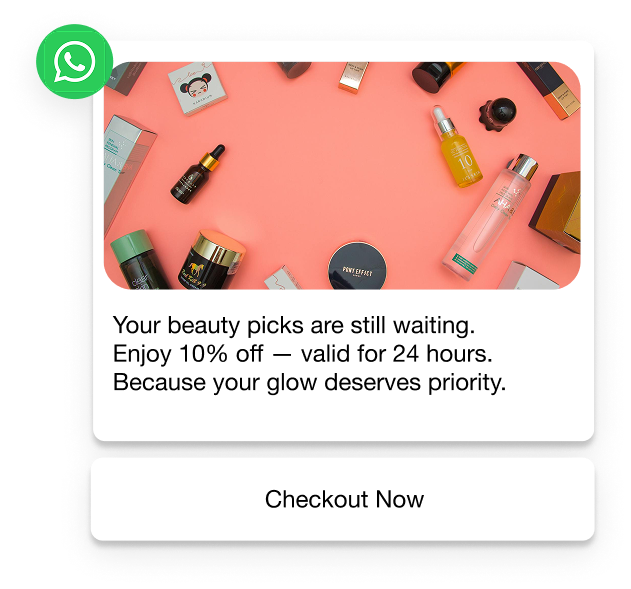
- Connect Webview screens to conversion steps with AI-generated carts and automated abandoned-cart nudges. This keeps the Webview linked to the user’s cart and prevents state mismatches.
- Run in-chat payments and checkout flows by connecting Webview screens to payment steps, address collection, and order confirmation without sending users outside WhatsApp.
- Maintain continuity after the Webview closes through smart segmentation, tailored broadcasts, and loyalty flows that follow up based on what the user did or didn’t complete inside the Webview.
- Handle backend orchestration to keep your tokens, sessions, and events in sync between chat logic and the mini-app experience.
- Work faster with Flowcart Team Support, especially for flows that require deep integrations, complex UI states, or multi-step forms.
If you want to turn your WhatsApp channel into an end-to-end shopping and service layer, with Webview at the center, Flowcart keeps the setup clean and the execution reliable. Book a demo to understand the process!
Also Read: Best WhatsApp Marketing Tools to Grow Your Business
FAQs
How does Webview differ from regular links in WhatsApp?
A regular link opens in the phone’s default browser, taking the user out of the chat. On the other hand, a Webview keeps the experience within WhatsApp, so the user can complete tasks without switching apps. This reduces drop-offs and makes multi-step flows easier to finish.
Which WhatsApp accounts support Webview?
Webviews work with WhatsApp Business API accounts (Cloud API or BSP). They are not available on the standard WhatsApp Business app. Only API-enabled flows can trigger in-chat Webviews.
What types of messages can trigger a Webview experience?
Interactive messages, like buttons, CTAs, and templates with URL actions, can open a Webview. The URL must comply with WhatsApp’s policies and be sent within an approved template if sent outside the 24-hour window.
Is Webview available on all devices and for all users?
Most modern Android and iOS devices support it, but behavior varies. Some users see the in-app view, while others are redirected to the system browser based on device, OS version, or WhatsApp build.
Can Webviews access device hardware like the camera or location?
Support varies by device, and permissions depend on the in-app browser. Basic access like camera upload, often works, but deeper hardware features aren’t guaranteed and should be tested across devices.
Do I need to change my existing templates to enable Webview?
Only if you plan to open the Webview outside the 24-hour window. In that case, the template must include a URL button. Within the session window, you can trigger Webviews via standard interactive messages without any changes.





%201.webp)



.png)