
Key Takeaways
- The WhatsApp Business API is a server-to-server channel that connects your CRM, ecommerce, or support systems to WhatsApp for automated, high-volume messaging and multi-agent inboxes.
- Since 2025, pricing has moved to a per-message model, with costs transparent and scaling with volume and message type; platform or BSP fees apply on top of Meta’s charges.
- Choose the right deployment: the Business App is best for single-phone use; the Cloud API is the best fit for teams needing automation and scale; on-premises offers complete control but carries a higher cost and complexity, and is being phased out.
- Tokens and webhooks are central: generate a secure system-user token, store it in a secrets manager, and build a public HTTPS webhook that replies with 200 within 30 seconds and queues processing.
- Templates let you initiate conversations outside the 24-hour window; free-form messages work inside the customer service window, while media and interactive messages add richer customer experiences.
- Build for reliability: add idempotency to avoid duplicate processing, use message queues and exponential backoff for rate limits, validate webhook signatures, and monitor delivery/read metrics after launch.
- Typical integration path: verify your business, create a WABA, register a clean phone number, generate tokens, configure webhooks, submit templates, test end-to-end, then harden and monitor in production.
- If you want to skip infrastructure work and get live faster, a managed platform like Flowcart can handle onboarding, token storage, webhook setup, template sync, CRM connectors, and a shared inbox. Sign up for a 7-day free trial or book a demo to see a live integration workflow.
Teams usually consider integrating the WhatsApp Business API when chat volume increases and response times slow down. They suddenly want to automate the routine, bring conversations into one place, and stop relying on manual follow-ups.
The confusing part, however, is choosing the right path. The Business App, Cloud API, and On-Premise setups sound similar, but each one solves a different problem. Pick the wrong one, and you end up with limits you didn’t plan for.
This guide outlines the mechanics of integrating the WhatsApp Business API. If your goal is to speed up responses, route conversations to the right teams, or run automated notifications without leaning on engineering, this is the place to start.
What is WhatsApp Business API Integration?
WhatsApp Business API Integration connects your internal systems, such as CRM, ecommerce platform, support tools, or a custom backend, to WhatsApp’s messaging infrastructure. Instead of using the consumer app or the Business App interface, the API runs on servers and handles requests programmatically.
This gives teams room to automate communication, trigger messages based on customer actions, and manage high-volume chats without device limits.
The integration acts like a bridge. Your systems send and receive data via the API, and WhatsApp delivers those messages to customers instantly. That’s how brands send order updates, reminders, verification codes, or support replies at scale.
It also supports multi-agent access through a unified inbox, webhook events for real-time updates, and deeper analytics that tie conversations back to customer activity.
Please note: WhatsApp moved from conversation-based pricing to a per-message model in 2025. This change matters for teams that send frequent updates, alerts, or promotional messages. Instead of calculating costs across 24-hour conversation windows, every message now carries a clear, fixed charge. It gives finance and operations teams tighter cost control, simpler forecasting, and fewer surprises when volumes rise during sales, product launches, or peak support periods.
Additional Read: Why WhatsApp is the Future of Conversational Commerce
WhatsApp Business App vs WhatsApp Cloud API vs WhatsApp On-Premise API
When teams compare WhatsApp options, most of the confusion comes from how similar they sound on paper and how differently they behave in practice. One works on a single phone, another runs entirely on Meta’s cloud, and the third sits on your own servers with complete control and full complexity. The table below lays out those differences so you can see which one fits your scale, workflows, and technical capacity.
How to choose the right WhatsApp setup
Most teams land on the right option once they match their message volume, internal capacity, and integration needs with what each model can handle.
Choose the WhatsApp Business App if:
You’re running a small operation where a single phone can manage most conversations. Message volume is predictable, broadcasts stay under 256 contacts, and there’s no urgency around automation or CRM sync. It works when the goal is simplicity.
Choose the WhatsApp Cloud API if:
Your team needs automation, faster response times, and a shared inbox without managing servers. It supports templates, workflows, CRM integrations, and message volumes that scale with your business. For most SMBs and enterprises, it offers the right balance of structure, scale, and operational simplicity.
Choose the WhatsApp On-Premise API if:
Data can’t leave your environment, and customization sits above convenience. You have a DevOps team, strict compliance rules, or legacy systems that need deep, controlled integrations. But with Meta sunsetting it, it’s only justified when data residency is non-negotiable.
Also Read: WhatsApp Webviews: Complete Guide
How WhatsApp API Integration Works
Short version: the API turns WhatsApp into a machine-to-machine channel. Messages flow between WhatsApp’s servers and your systems through webhooks and API calls, and middleware (queues, load balancers, databases) keeps everything reliable at scale.
Core architecture of WhatsApp API integration
Three parts move every message:
- Producer: WhatsApp servers that emit events (incoming messages, delivery updates, template status).
- Consumer: Your webhook endpoint that accepts those events and hands them to your app.
- Middleware: The layer that absorbs traffic spikes, prevents message loss, and lets your app process WhatsApp events reliably in the background.
Typical flow: Customer → WhatsApp servers → your webhook → your application → call WhatsApp API to reply → WhatsApp delivers message to customer.
Authentication and access tokens
All API calls use bearer tokens in the Authorization header:
Authorization: Bearer YOUR_PERMANENT_ACCESS_TOKEN
Token types:
- Temporary tokens for testing (<24 hours).
- Permanent/system-user tokens for production (long-lived).
How to get a permanent token: Create a Meta developer app → add WhatsApp product → create a system user → assign permissions → generate token. Store tokens in secret managers or environment variables and rotate them periodically.
Security notes: Never hardcode tokens, apply least-privilege scopes, and revoke compromised tokens immediately.
Key identifiers you’ll use every day
- Phone Number ID: Internal alphanumeric ID that represents your WhatsApp number in API endpoints (not the visible phone number).
- WABA (WhatsApp Business Account): The business entity that holds phone numbers, templates, and settings. Your WABA ID appears in the dashboard and is used for account-level operations.
📌You can find both inside Meta Business Manager under WhatsApp settings.
Sending messages (what you can send and when)
- Template messages: Start conversations outside the 24-hour window. Use pre-approved templates for order updates, reminders, and alerts.
- Free-form text: Send messages only inside the 24-hour customer service window after the user reaches out.
- Media: Relay images, video, documents, audio; download media by requesting the media URL and fetching it within the URL expiry window.
- Interactive messages: Get structured replies to your webhooks with buttons and list selections.
Typical send flow: Build JSON payload → attach Authorization header → POST /vXX/{PHONE_NUMBER_ID}/messages → WhatsApp returns message ID and status.
Receiving messages: Webhooks
Webhooks are the primary input channel. Key steps to set them up:
- Create a public HTTPS endpoint with a valid SSL certificate.
- Register the URL and a verify token in Meta Business Manager.
- Complete the one-time verification by echoing hub.challenge.
- Subscribe to events you need (messages, message_status, template status, conversation lifecycle).
Important webhook facts:
- Respond promptly to verification and subsequent webhook calls.
- Webhooks can include text, media, interactive payloads, and delivery/read status.
Webhook handling best practices
- Reply with an HTTP 200 status code within 30 seconds: Return 200 immediately, then process the payload asynchronously.
- Implement idempotency: Track incoming message IDs and skip duplicates.
- Validate signatures: Use the x-hub-signature-256 header and your app secret to HMAC-check the raw body.
- Decouple processing: Push webhook payloads to a message queue (Redis, SQS, Bull, etc.) and let workers handle DB updates, CRM sync, and outbound messages.
- Handle media safely: Retrieve media via the API URL and store it within its short expiry window.
Message status tracking and retries
WhatsApp sends delivery status webhooks (sent, delivered, read, failed). Store message IDs returned at send time and update status on status callbacks. For rate limits (HTTP 429), implement exponential backoff and capped retries to avoid throttling.
Rate limiting and sending capacity
The WhatsApp Cloud API starts with a default sending limit of about 80 messages per second, which can be increased over time based on account quality and usage history.
When your system reaches this limit, message sending should slow down automatically. Placing messages in a queue and retrying them after short, increasing delays helps spread traffic evenly, avoids dropped messages, and keeps your integration operating within approved limits.
Two common integration workflows (end-to-end)
Order confirmation (e-commerce):
Order placed → e-commerce webhook → backend constructs template → POST /messages → store message ID → delivery webhook updates DB → customer sees confirmation.
Support routing:
Incoming message webhook → validate & save → check CRM for customer record → create or fetch conversation → push to agent queue → agent replies via API → reply status tracked and stored.
Quick checklist before you go live
- Generate and store a permanent access token in a secrets manager.
- Register phone number and copy the Phone Number ID for API paths.
- Configure and verify a secure webhook URL in Meta Business Manager.
- Build idempotency and signature validation into your webhook processor.
- Use a queue-and-worker pattern so webhook responses return quickly.
- Implement exponential backoff for 429 responses and keep monitoring delivery rates.
Summary of the complete integration flow
- Create Meta app → generate permanent token → create WABA and register phone.
- Set webhook URL and verify ownership.
- Build message payloads (templates for outbound initiation).
- Send messages via POST /{PHONE_NUMBER_ID}/messages with a bearer token.
- Receive message/delivery webhooks → acknowledge immediately with 200 → queue for processing.
- Update DB/CRM with message IDs and statuses → route conversations to agents or automations.
- Monitor throughput, errors, and template approvals; adjust retry and queue policies
Key takeaways: Tokens and webhooks are central; respond quickly to webhooks and process asynchronously; add idempotency, signature checks, and queues to make the integration reliable at scale.
Step-by-Step Guide: How To Integrate WhatsApp API
Total setup time: Expect roughly 3–7 days for most teams, driven mainly by business verification speed and template approvals.
1) Plan and gather prerequisites
Start by collecting legal documents, a dedicated phone number, and a public HTTPS endpoint.
- Gather proof of legal business name and registration (GST, incorporation certificate, or business license) and a utility bill or bank statement with your business address.
- Use a phone number that has never been registered on WhatsApp, can receive SMS or voice calls, and is formatted in E.164 (for example, +91XXXXXXXXXX).
- Reserve a domain and a server (or hosting) so you can deploy a secure webhook endpoint reachable over HTTPS.
2) Create and verify your Meta Business Account
Verifying your business unlocks the WhatsApp API and prevents avoidable delays.
- Create a Meta Business Manager account, enter exact legal details, and upload the requested verification documents.
- Confirm the business email and complete the verification steps in the Business Manager dashboard.
- Expect review time of a few business days, and double-check that all names, addresses, and IDs match your documents exactly.
3) Create the Meta app, WABA, and register the phone number
This links your developer app to the WhatsApp Business Account (WABA) and the number you’ll use.
- Create a Business app and add the WhatsApp product in Meta for Developers.
- Connect your WABA, set the public display name, and select the correct industry category.
- Add the phone number and verify it by entering the SMS or voice code.
📌Remember: once a number is registered to a WABA, it cannot be reused elsewhere without first removing it and waiting the required period.
4) Generate tokens and collect identifiers
You need a system user token and three identifiers for API calls.
- Create a System User in Business Manager, grant it WhatsApp permissions, and generate a permanent access token.
- Store the token in a secrets manager or environment variable, but never commit it to source control.
- Record your Phone Number ID, WABA ID, and Business Account ID from the API Setup screen; these IDs are required for all API endpoints.
5) Build and verify your webhook endpoint
Webhooks are how WhatsApp delivers incoming messages and status updates to your systems.
- Deploy a public HTTPS webhook that accepts POST requests and responds to the initial verification challenge by echoing hub.challenge.
- Configure the callback URL and verify token in the Meta for Developers dashboard, then subscribe to the events you need (messages, message_status, template updates, conversation lifecycle).
- Reply with HTTP 200 within 30 seconds and queue heavy processing to prevent webhooks from blocking in production.
6) Create, submit, and monitor templates
Templates are mandatory to start conversations outside the 24-hour window.
- Create templates in the dashboard using clear, specific text and placeholders (for example: “Hi {{1}}, your order {{2}} is confirmed.”).
- Choose the correct category (marketing, utility, authentication, service) and attach header media only when appropriate.
- Submit templates for approval, track status, and correct any rejections (common causes: misplaced placeholders, wrong category, or policy issues).
7) Test sending and receiving messages end-to-end
Verify both outbound and inbound flows before you go live.
- Use the test number or your registered number to send a template message via the POST /v{version}/{PHONE_NUMBER_ID}/messages endpoint and confirm the API returns a message ID.
- Send an inbound message from a phone to exercise webhook delivery, check logs for the correct payload fields, and validate signature headers if you implemented HMAC checks.
- Test media uploads/downloads, interactive messages (buttons and lists), and updates to delivery statuses (sent, delivered, read).
8) Harden, deploy, and prepare for production launch
Lock down security, resilience, and compliance before onboarding customers.
- Store tokens in a secrets manager, validate webhook signatures with your app secret, and use HTTPS with a valid certificate.
- Implement idempotency (skip duplicate message IDs), message queues for asynchronous processing, and exponential backoff for HTTP 429 responses.
- Ensure explicit customer opt-in, update privacy policies to document WhatsApp use, and verify compliance with industry requirements (GDPR, local data-residency rules).
9) Monitor, optimize, and scale
After launch, measure the system and iterate.
- Track delivery, read rates, error rates, and template performance, and set alerts for spikes in failures or 429s.
- Use delivery and read webhooks to update CRM records and to trigger retries or escalation workflows.
- Segment audiences, A/B test message wording and send times, and request higher throughput from Meta if your volume requires it.
Quick troubleshooting pointers
- Webhook verification fails: Check token exactness, public URL availability, and SSL validity.
- Template rejected: Correct placeholders and select the correct category before resubmitting.
- Messages not delivered: Verify phone format, template approval, token validity, and that the Phone Number ID matches the request.
- Received duplicate webhooks: Implement idempotency based on message IDs to prevent double processing.
Integrating the WhatsApp Cloud API is a predictable sequence: plan and gather documents, verify the business, create a WABA and register a clean phone number, generate secure tokens, build and verify a webhook, submit templates, and test both outbound and inbound flows.
Focus on security (token storage, signature checks), reliability (queues, idempotency, backoff), and compliance (opt-ins, privacy). Once live, measure delivery and engagement, iterate on templates and workflows, and scale throughput as required.
Best Use Cases for WhatsApp API Integration
Most teams adopt the API when they outgrow manual messaging and need workflows that run independently. These are the situations where the API delivers the strongest lift:
- Order updates and confirmations for ecommerce, logistics, and delivery businesses that need real-time customer communication.
- Automated reminders for renewals, appointments, payments, demos, or service follow-ups.
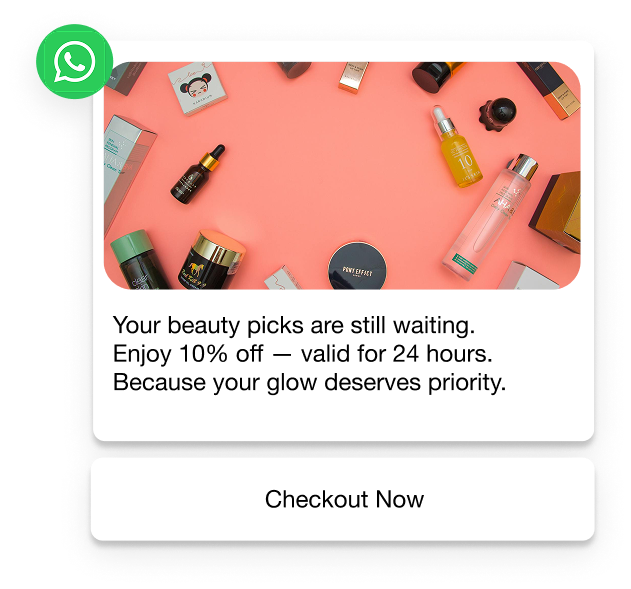
- Re-engagement campaigns using approved templates for abandoned carts, dormant leads, or repeat purchase nudges.
- CRM-driven workflows that send messages automatically when customer data changes.
- Lead qualification and routing where incoming inquiries need quick replies, structured questions, and handoffs to sales reps.
- Verification and authentication flows, including OTPs, onboarding steps, and secure notifications.
- Interactive conversations that use buttons and lists to collect inputs without forms or long threads.
- Customer support at scale using a shared inbox, message routing, and the 24-hour service window for fast responses.
Top WhatsApp API Integration Tools and Platforms
Choosing where to run your WhatsApp API setup depends on how much control you need, how technical your team is, and how fast you want to go live. Some platforms focus on raw API access for developers, some bundle WhatsApp into broader communication suites, and others offer no-code automation to help non-technical teams move quickly.
The table below lays out the major WhatsApp marketing tool options so you can compare them side by side before deciding how much work you want to take on in-house.
Once you understand the landscape and what each tool offers, the next question is how to activate the WhatsApp API without draining engineering bandwidth. Flowcart gives teams a simpler starting point: onboarding, token management, webhook configuration, templates, automation, and shared inbox capabilities are all handled for you.
Suppose you want to move from research to a working WhatsApp setup without managing the technical layers yourself. In that case, you can explore the next section to see how Flowcart supports the entire integration process.
Must Read: WhatsApp Marketing Cost: Pricing, Factors, and How to Save Money
How to Integrate WhatsApp API With Flowcart
Put simply, Flowcart removes the technical burden of setting up the WhatsApp API. Instead of generating tokens, configuring webhooks, and wiring multiple systems together, your team follows a short onboarding flow while Flowcart handles the underlying API work.
Step 1: Connect your Meta Business Account and WhatsApp number
You sign in with your Meta Business Account, pick the WhatsApp Business Account you want to use, and register your phone number. Flowcart guides you through display name approval and number verification, while automatically handling the Phone Number ID and initial configuration steps.
Step 2: Activate your API setup without managing tokens or webhooks
Flowcart generates and secures the required system-user tokens on your behalf. A ready-to-use webhook endpoint is created automatically, including event subscriptions and signature validation. Your team does not store, rotate, or debug tokens, and does not need to deploy a public webhook server.
Step 3: Add or import message templates
Flowcart pulls your existing Meta templates and displays them in the dashboard. You can create new templates, add variables, attach media, and submit them for approval. Once approved, templates are immediately available for automated or one-time messages.
Step 4: Connect Flowcart to your CRM or ecommerce platform
You pick the systems you use, like Salesforce, HubSpot, Shopify, WooCommerce, or a custom CRM, and map fields directly from the dashboard.
Flowcart syncs contacts, orders, and customer activity so your workflows can send messages based on events such as purchases, sign-ups, or updates.
Step 5: Build automated WhatsApp workflows and manage conversations
WhatsApp Flows define how messages are sent, routed, and handled across different scenarios. Flowcart executes the underlying API logic, manages the 24-hour session rules, and tracks delivery and read status automatically. Conversations appear in a shared inbox where teams can assign ownership, add context, and follow the full message history.
In case your team is planning to move from manual WhatsApp messaging to a structured, scalable setup, the API gives you everything you need: automation, routing, high-volume messaging, and tight integration with your existing systems. Flowcart brings all of this together without the heavy technical work. You get an API-ready WhatsApp number, connected templates, synced customer data, and automation flows that run from day one.
If you're ready to set up WhatsApp for your support, sales, or ecommerce workflows, you can book a demo to see how Flowcart handles the full integration for you.
FAQs
What are the costs involved in using the WhatsApp API in 2026?
WhatsApp uses a per-message pricing model, with rates varying by template category and country. You also pay platform fees if you use a BSP or an integration tool, but there are no infrastructure costs on the Cloud API itself. Total spending depends on message volume, template mix, and whether you send marketing or utility messages.
Do I need Facebook Business verification to use the WhatsApp API?
Yes, business verification is required before you can use a production WhatsApp API number. Verification confirms your legal identity and unlocks features like higher messaging limits and template approvals. Without it, you are restricted to testing numbers and sandbox-level functionality.
How long does it take to activate a WhatsApp API number?
Most teams complete activation within three to seven days, depending on how quickly Meta approves the business verification. Phone number registration and display-name checks usually move fast once verification is complete. Delays typically come from document mismatches or incomplete business details.
Can I migrate my existing WhatsApp Business App number to the WhatsApp API?
Yes, you can migrate a Business App number to the API, provided you first delete the existing WhatsApp account tied to that number. Once deleted, the number becomes eligible for API registration and can be linked to your WABA. The number’s chat history does not carry over during migration.
What security and compliance measures does the WhatsApp API support?
The API runs on Meta’s secure infrastructure and supports encryption in transit, verified webhooks, HMAC signatures, and strict access-token controls. Businesses can manage permissions through system users, rotate tokens, and enforce least-privilege access. The platform meets major global standards like GDPR and CCPA, and enterprises can layer additional controls on their own systems.






%201.webp)



.png)