
.png)
Key Takeaways
Ecommerce emails, including those from Shopify, average a 29.81% open rate and a 1.74% click rate.
That means every time you send an order confirmation to a customer's inbox, less than 71% open it, and fewer than 2 in 100 actually click through. The remaining? They later log a WISMO (Where Is My Order?) support ticket, which overloads your team and frustrates customers.
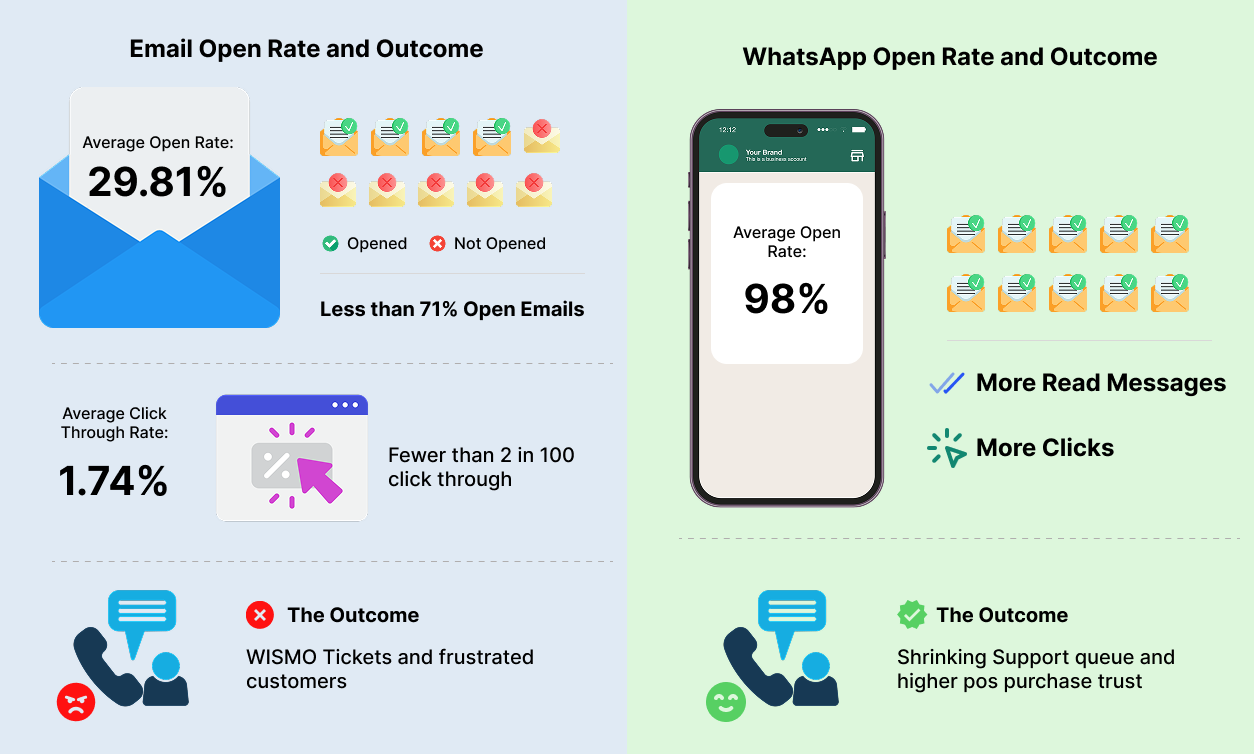
WhatsApp fixes that. Messages have a 98% open rate. More messages seen means more messages read and more clicks. Customers get real-time updates in the app they already check constantly, your support queue shrinks, and post-purchase trust goes up.
In this article, we’ll explain how to set up automated Shopify order notifications on WhatsApp, what to measure, and why Flowcart is the fastest way to get it live.
How WhatsApp Order Notifications Drive Revenue Beyond Delivery Updates
While order notifications help you inform, the smarter move is to use them to sell.
Here’s how that works:
Converting Cash on Delivery Orders to Prepaid
COD (Cash on Delivery) orders carry a hidden cost. Every unconfirmed payment is a potential RTO (Return to Origin) risk, which means shipping costs with no revenue to show for it. WhatsApp gives you a direct line to close that gap before the order even arrives.
The moment an order is dispatched, Flowcart can trigger a message that reads something like: "Hey John, your order is on its way. You chose cash on delivery as your payment option. Pay now via this link for a hassle-free delivery experience."
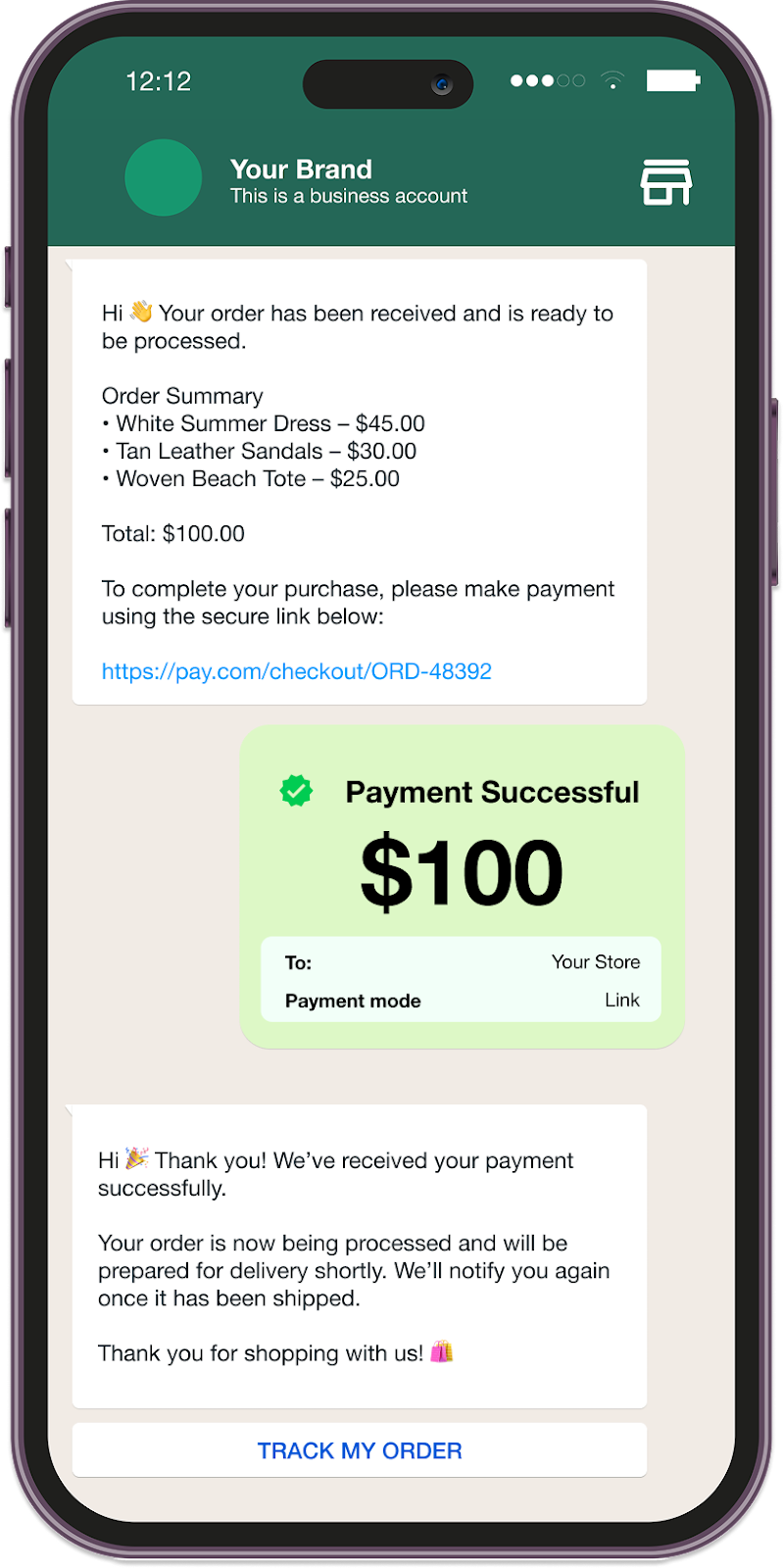
One message, sent at the right moment, converts a payment risk into confirmed revenue and reduces your RTO rate.
The flow: Order dispatched → COD conversion nudge with payment link → confirmed prepaid order
AI-Powered Upsells at the Moment of Peak Interest
A customer who just had their order shipped is in the best possible headspace. They are excited, engaged, and already thinking about the product they bought. That is the highest-intent window your Shopify store gets post-purchase.
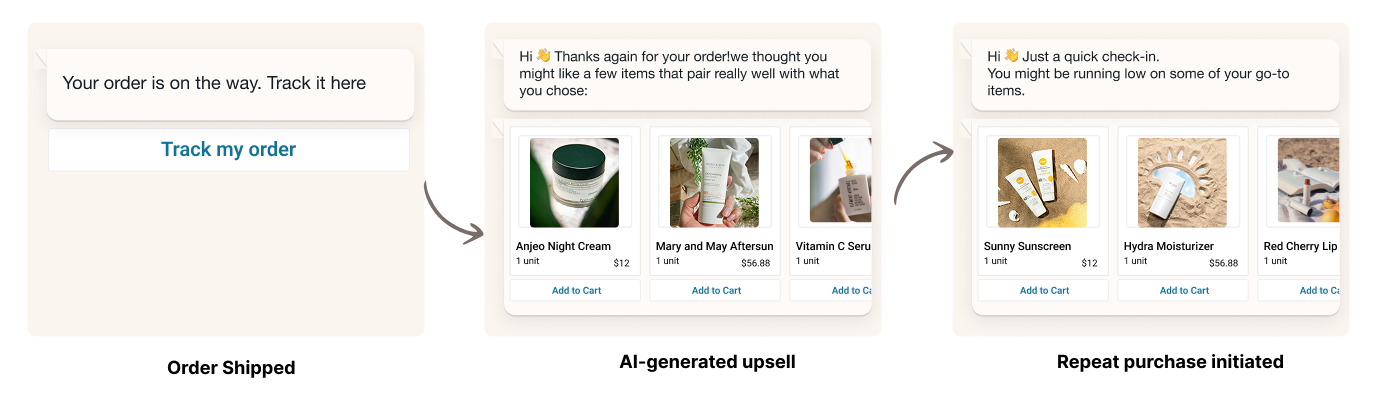
Flowcart's AI-powered upsell flows tap into that window by analyzing what the customer ordered and automatically surfacing complementary products inside the same WhatsApp thread. No new campaign. Just a timely, personalized recommendation that feels like good service rather than a sales push.
The flow: Order shipped → AI-generated upsell with complementary product suggestions → repeat purchase initiated
5 Steps to Set Up WhatsApp for Shopify Order Notifications
To send automated updates, such as order confirmation, dispatch, and delivery, you need a WhatsApp Business and an automation platform connected to your store. That’s because Shopify doesn't support WhatsApp order notifications natively.
There is a laundry list of platforms you can use for this integration. Some handle just notifications, like WhatsApp by Meta or Whatsy, while others cover features like automated cart abandonment recovery.
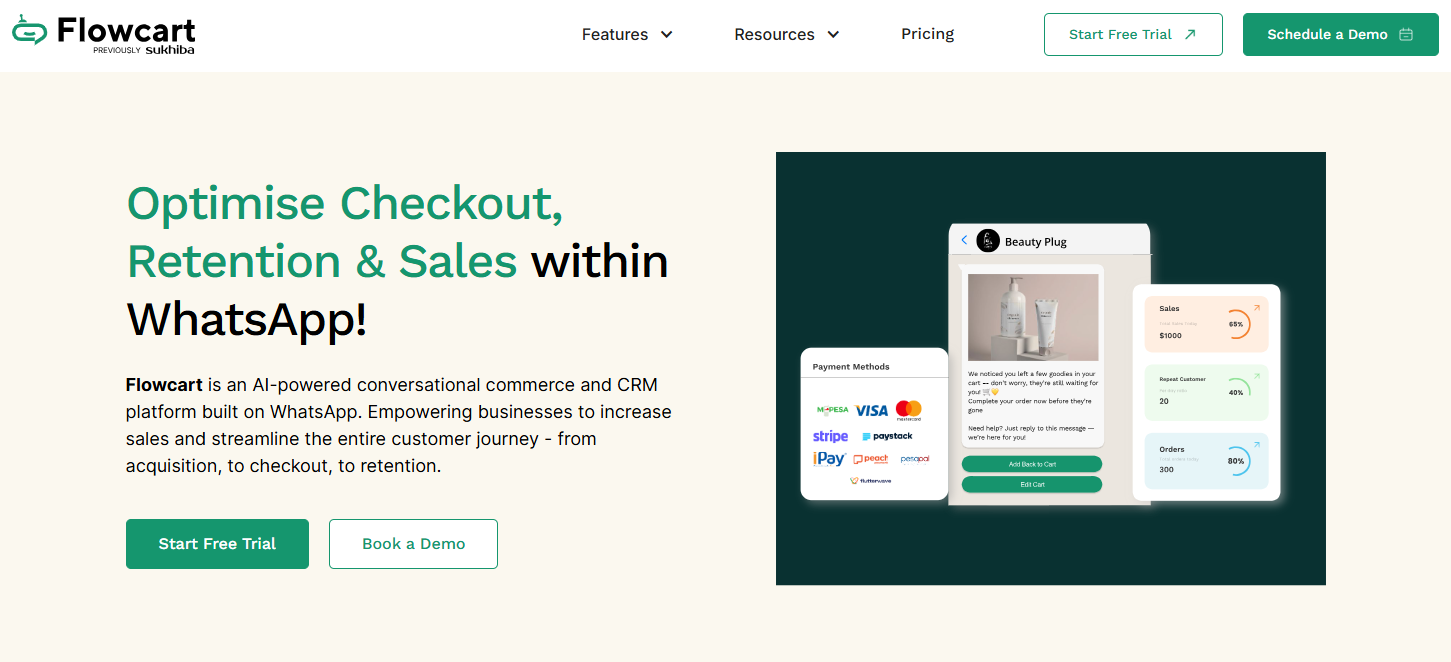
For this article, we’ll use Flowcart, a more comprehensive, conversion-first WhatsApp business platform designed to turn WhatsApp into your Shopify store’s sales engine.
Here's how to set it up in 5 steps.
Step 1: Install Flowcart from the Shopify App Store
Go to the Shopify App Store and search for Flowcart. Click Install. Shopify will request permission to give Flowcart access to your products, orders, discounts, and customer data. Approve all of them. These permissions are what allow Flowcart to read order events and trigger the right WhatsApp message at the right time.
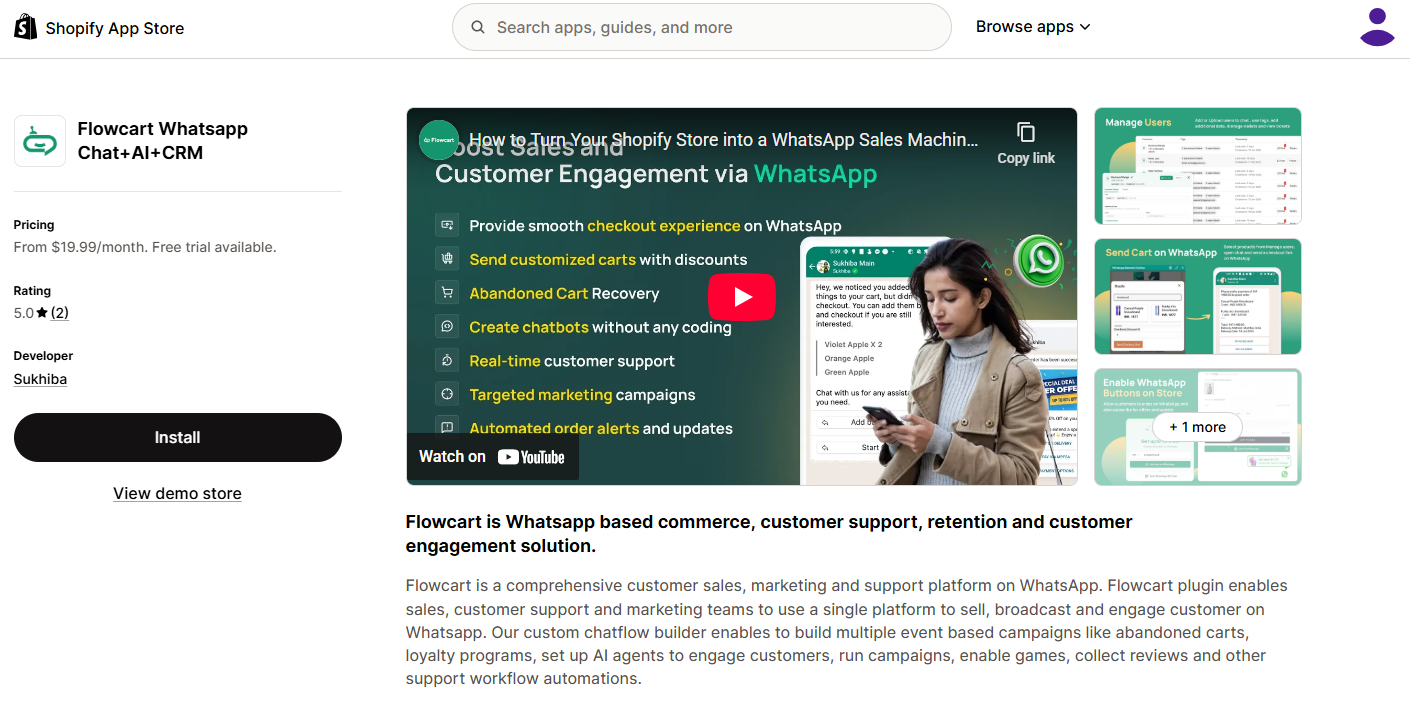
Once installed, Flowcart appears as a dedicated app inside your Shopify admin under Apps. From here, you manage everything: flows, broadcasts, templates, tickets, and analytics, without leaving Shopify.
Step 2: Connect Your WhatsApp Business Number
Inside the Flowcart dashboard, go to Settings and locate the WhatsApp Business Account section. Enter your WhatsApp Business number. This must be a number not linked to any personal WhatsApp account. If it is, verification might fail.
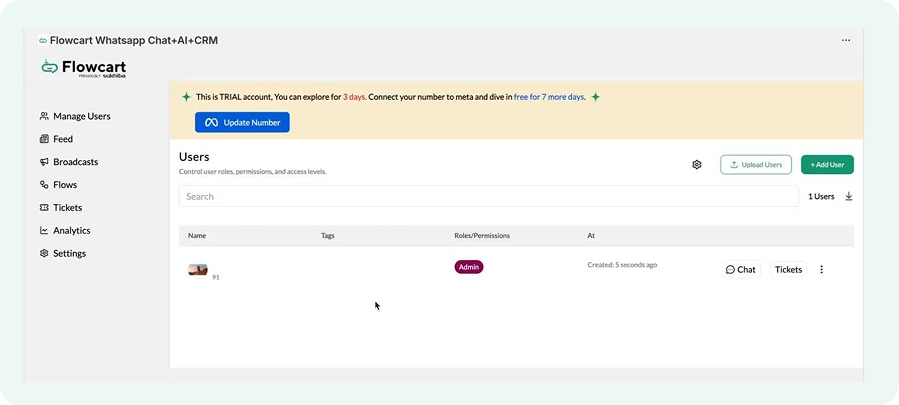
Flowcart connects via the WhatsApp Business API. Once you input your number, Meta sends a verification code via SMS or voice call. Complete verification. Meta approval typically completes within 24 to 72 hours. Once approved, your account quality status will show as GREEN inside Flowcart's settings. That means you can now send messages.
Step 3: Sync Your Shopify Customers
Still inside Settings, click “Sync Customers” to pull all your existing Shopify customer data into Flowcart's system and keep it updated in real time. That data includes every new order, customer detail, and phone number is automatically imported into Flowcart.
This sync enables personalized order notifications. When a customer places an order, Flowcart already knows who they are, what they ordered, and where to send the WhatsApp message.
Step 4: Configure Your Order Notification Flows
Go to Flows inside the Flowcart dashboard and select the “Shopify” tab. This is where you map each order event to a WhatsApp message. The trigger points you want to activate are:
- Order placed → order confirmation message
- Order placed → payment made → AI-generated upsell with complementary product suggestions
- Order dispatched → shipping confirmation with tracking link
- Order dispatched → COD conversion nudge with payment link
- Out for delivery → delivery alert
- Order delivered → delivery confirmation and optional feedback prompt
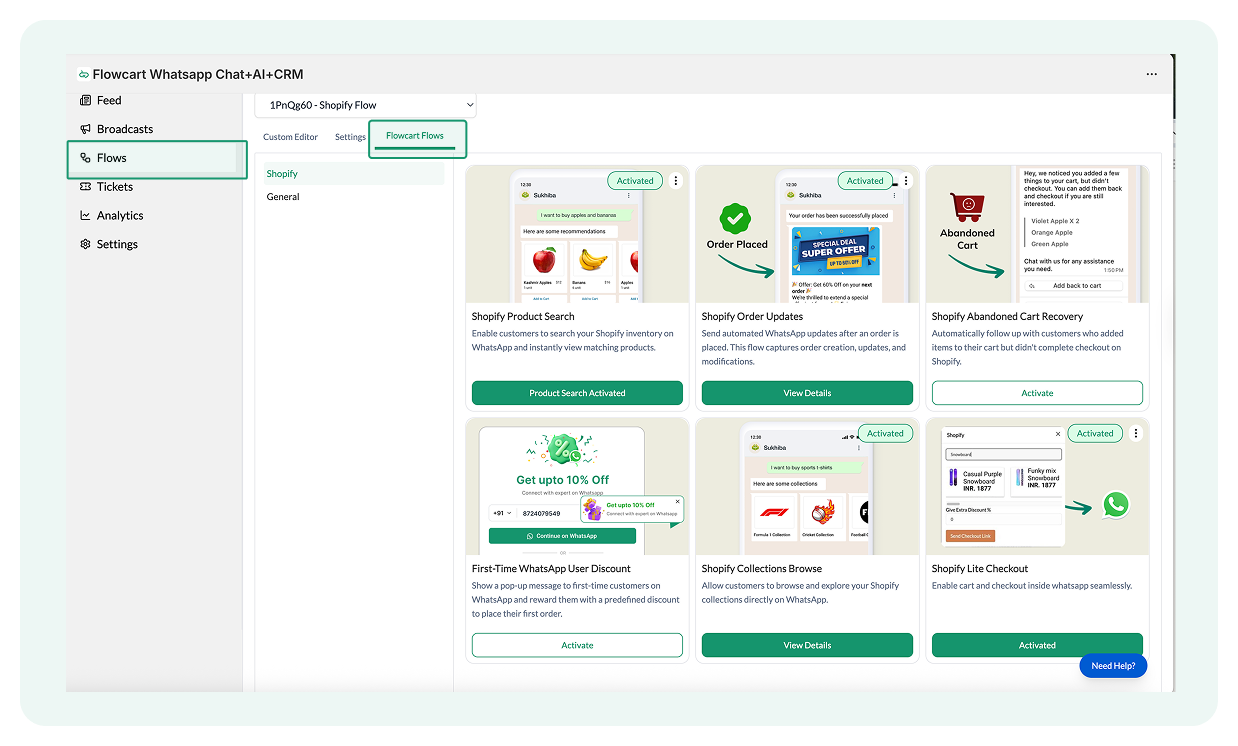
Each trigger has a corresponding message handler where you define the message content, include dynamic variables like customer name, order number, and product details, and set timing logic.
Just a quick note. Flowcart's prebuilt order notification flows are ready out of the box, so you can activate them as-is or customize the copy to match your brand voice.
Step 5: Create and Activate Your Message Templates
WhatsApp requires pre-approved message templates for all outbound notifications. Inside Flowcart, go to Broadcasts and select the Templates tab. “Click Create New Template”, select Utility as the category for transactional messages like order updates, write your message copy using the available dynamic variables, and submit for Meta approval.
Template approval usually takes a few minutes to a few hours. Once the status shows as Approved, your flow is live. Every qualifying Shopify order event will now automatically trigger the corresponding WhatsApp notification.
How to install a WhatsApp Chat Widget on Shopify
If you've already completed the order notifications setup above, you're halfway there. Flowcart is already installed, and your WhatsApp number is connected. The widget is an extension of the same setup, which means no separate app is needed.
Here’s how.
Step 1: Navigate to the Widget Settings
Inside the Flowcart dashboard, go to Settings. Scroll down to the WhatsApp Widget section. You'll see the Enable WhatsApp Widget option, with a direct prompt to activate it, in your store's landing page editor.
Step 2: Enable the Widget
Click Enable Widget. This automatically embeds a WhatsApp chat button on your Shopify storefront. The button appears on your live store immediately after activation, and no code injection or theme editing is required.
Step 3: Customize Placement and Appearance
Once enabled, Flowcart redirects you to the landing page editor where you can adjust the widget's placement. Move it to the bottom-right, bottom-left, or any position that fits your store layout without obstructing the buying experience. Keep it visible but unobtrusive.
Step 4: Set Your Online and Offline Hours
Inside the widget settings, configure your business hours. This tells customers when you're available for a live chat response and sets expectations when you're not. During offline hours, Flowcart's AI-flows handle incoming messages so no conversation goes cold.
Step 5: Test Before Going Live
Place a test visit on your store as a customer would. Confirm that the widget appears in the correct position, that the WhatsApp chat opens correctly on click, and that the pre-loaded message or greeting triggers as expected. Once confirmed, your widget is live and ready to capture conversations directly from your storefront.
4 Benefits of a Chat Widget for Customer Engagement
A well-designed and placed widget reduces communication frictions, delays, and team load. Most importantly, it prevents drop-offs. Here’s how.
1. Customers Get Answers Before They Drop Off
Most purchase decisions stall at the product page, and here’s what happens:
- A customer has a question about sizing, delivery time, or stock availability
- There's no one to ask. So, they leave
According to HubSpot's 2024 State of Service, 82% of customers expect an immediate response or resolution when they reach out. A WhatsApp chat widget puts that response one tap away, right on the page where the buying decision happens.
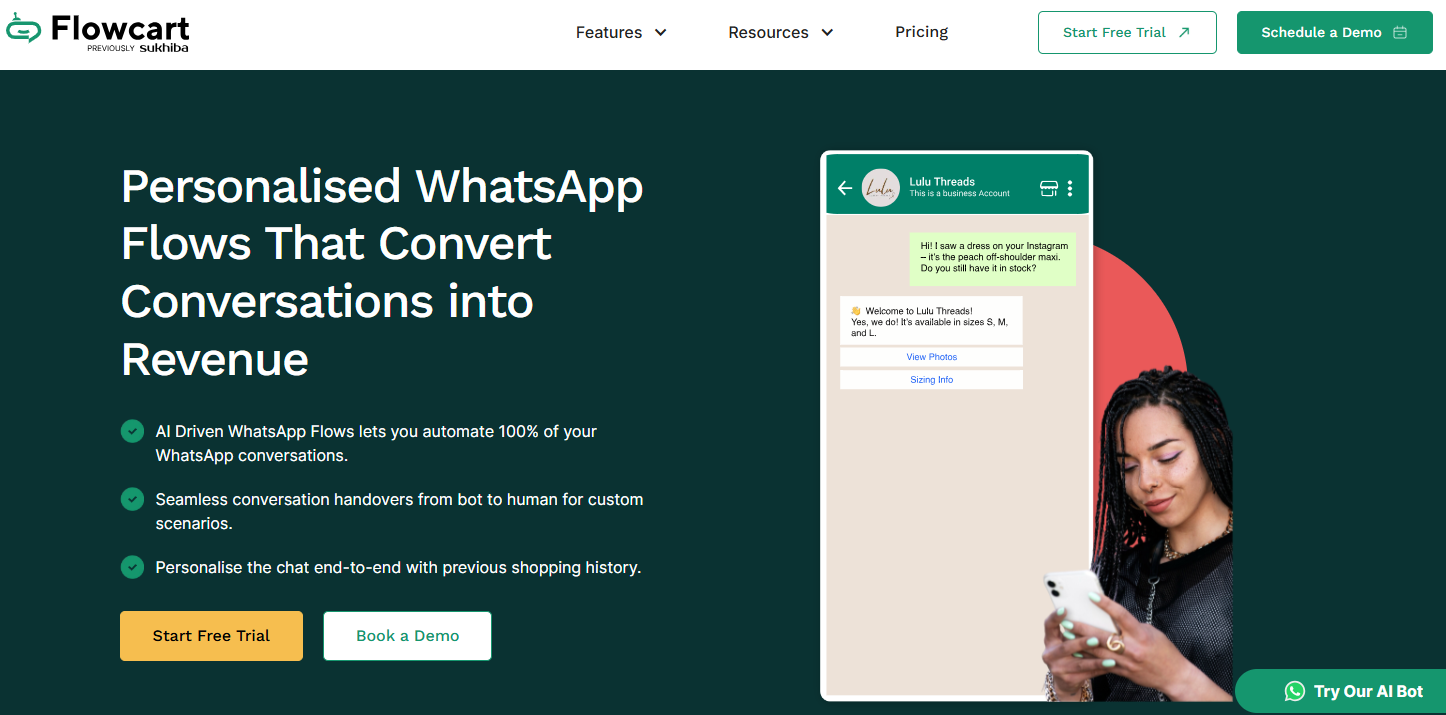
The best part? Flowcart's automated WhatsApp flows handle this instantly. When a customer opens the widget, they're presented with a guided response, eliminating wait time and queues. Complex questions get routed to a live agent without the conversation breaking.
2. Every Conversation Stays in One Thread
A customer places an order, then has a follow-up question. With email, that becomes a new ticket, a new thread, and a disconnected experience.
But with a widget leading to WhatsApp, the entire relationship, pre-purchase queries, order updates, and post-purchase support, lives in a single chat thread. Context is never lost.
Flowcart ties this together by connecting your Shopify order data directly to the conversation. When a customer asks, "Can I modify the order even though I’ve completed checkout?", your agent or bot already has the answer pulled from Shopify in real time.
3. It Reduces Support Ticket Volume
WISMO (Where is my order?) is the single most common post-purchase support query for Shopify stores. The downside is that it clogs inboxes and takes up your agents’ time that should be devoted to higher-value interactions.
A WhatsApp widget that proactively updates customers at every order stage eliminates most of these queries before they're even asked.
Flowcart's automated order notification flows, and the AI Chatbot handles this end-to-end. Customers receive updates at every stage, confirmation, dispatch, out for delivery, delivered, without reaching out. This shrinks your support queue without adding headcount.
4. Chat Widgets Turns Post-Purchase Into a Revenue Moment
Most Shopify stores treat the chat widget as a support tool. But the thing is, it can also be a sales one. For instance, a customer who just received their order and is satisfied is at their most receptive. That's the right moment to surface a reorder reminder, a loyalty point balance, or a personalized recommendation.
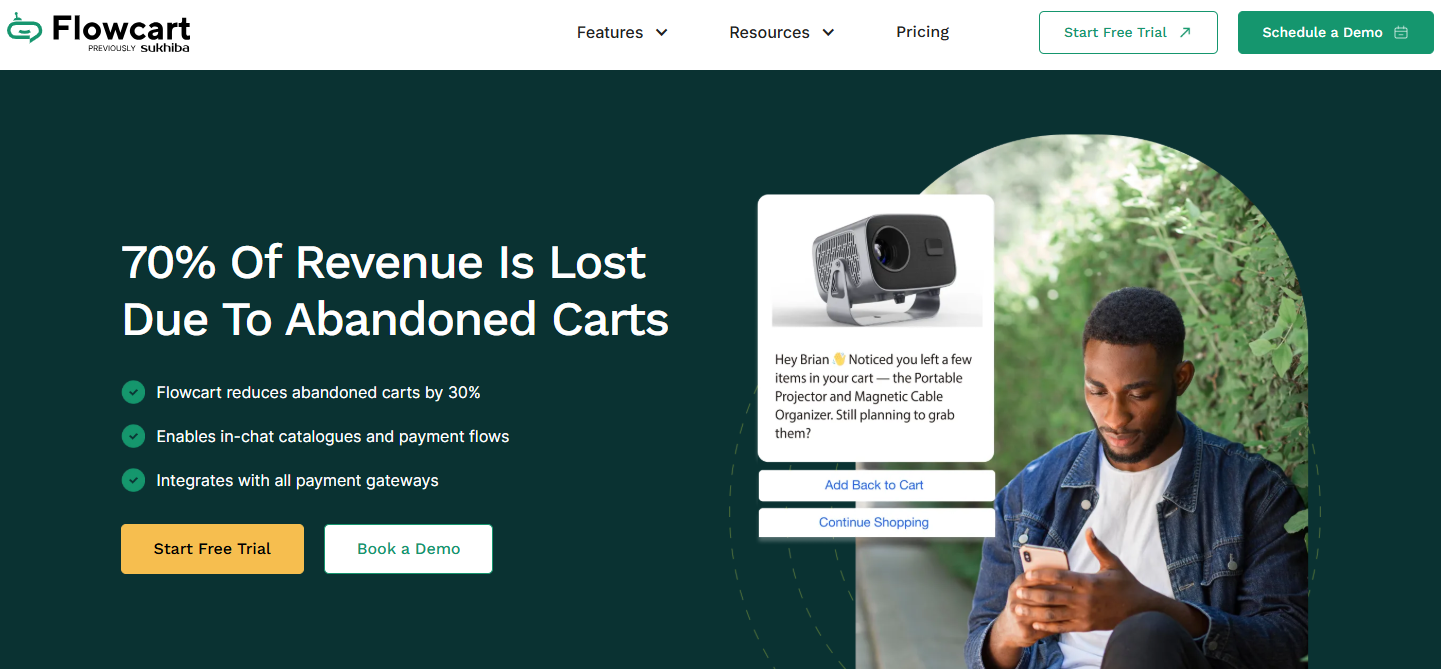
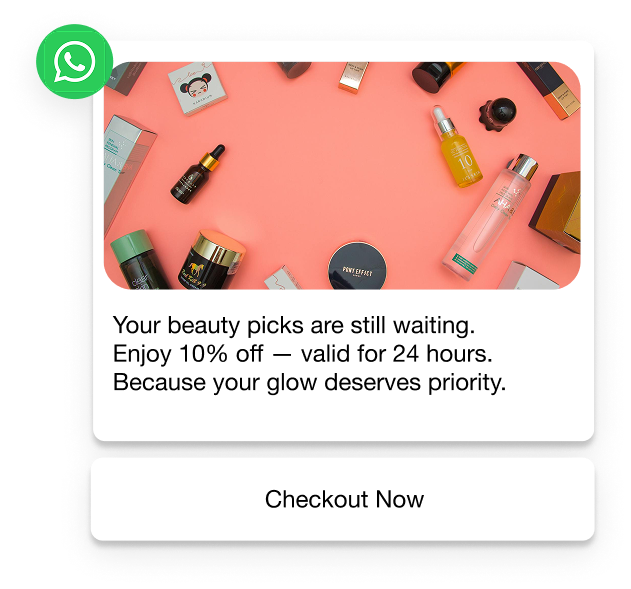
Flowcart uses post-purchase chat triggers to do exactly that, effectively serving customers with relevant product suggestions and loyalty incentives directly in the same WhatsApp thread, without sending them to a new page or an email campaign. It can also pop up with reminders for abandoned carts or uncompleted checkouts.
5. Boosts Upsell Opportunities
When a customer is mid-browse or has just added something to their cart, they are at peak buying intent. The chat widget sits on that exact page and gives you a direct line into that moment. Instead of waiting for them to check out and following up later, you can surface a complementary product recommendation right inside the conversation they just started.
For instance, a customer asking about a pair of sneakers is already warm. You can set up your widgets to recommend matching socks or a cleaning kit inside the same chat thread. This feels helpful and converts at a significantly higher rate than a follow-up campaign sent hours later.
Flowcart's AI-powered flows make this automatic, analyzing what the customer is browsing and recommending the right product without any manual input from your team
What are the Key Metrics to Measure in WhatsApp Order Notifications?
Setting up WhatsApp order notifications is only half the job. The other half is to know whether they're working or not. These metrics actually tell you that:
Message Delivery Rate
This is your baseline, showing the percentage of your WhatsApp order notifications that reach customers. While there’s no hard-and-fast rule or figure, a delivery rate below 95% is a signal worth investigating.
Usually, it points to invalid phone numbers in your customer database, opt-in gaps, or a quality issue with your WhatsApp account.
If you’re using Flowcart’s app plugin, you can easily view the delivery rates per flow inside your account’s Analytics dashboard and visibly locate patterns or fixes needed.
Message Read Rate
Delivery confirms the message arrived, whereas read rate confirms it was seen. WhatsApp's end-to-end architecture lets you track read receipts at scale, something email never did cleanly.
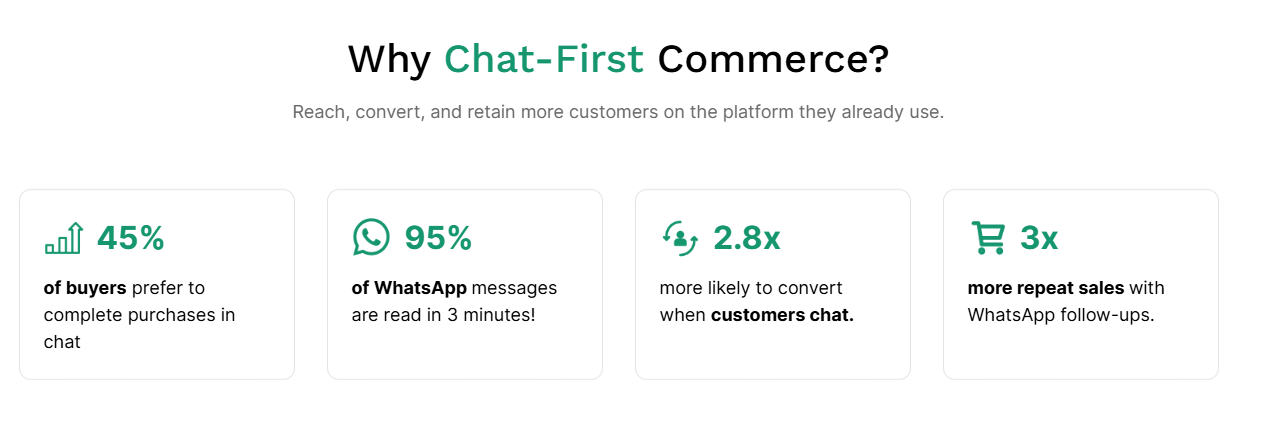
A healthy read rate for transactional messages, such as order confirmations, typically sits above 80%. That’s conservative, given that 95% of WhatsApp messages are read in 3 minutes.
If yours is significantly lower, the issue is usually message timing or template copy that doesn't communicate urgency or relevance fast enough in the first line. You can fix it by testing different copies or opening lines to see which works best.
COD to Prepaid Conversion Rate
This metric shows how effectively your order notifications convert cash-on-delivery orders into confirmed prepaid payments. Track what percentage of COD customers complete an online payment after receiving a Flowcart dispatch notification with a payment link.
A rising conversion rate here directly reduces your return rate and locks in revenue that would otherwise stay uncertain until the delivery rider shows up at the door.
Upsell Revenue from Order Notifications
Upsell revenue from order notifications tells you how much of your monthly revenue originates from product recommendations sent inside order notification threads during the post-purchase window.
Track it using Shopify platforms like Flowcart, which goes further by attributing revenue generated from upsell messages triggered during the post-purchase window, compared to other alternatives.
WISMO Ticket Volume
This is the most direct measure of whether your order notifications are doing their job. If customers are still flooding your support inbox with "Where is my order?" queries after you've activated WhatsApp notifications, your flow has gaps.
That gap can be caused by a trigger not firing, a message not landing, or a key order stage missing coverage. Flowcart helps you figure this out early on when setting up your account and ensures your notifications land in the right place, at the right time, and with the right person. This results in a measurable drop in WISMO tickets within the first two to three weeks of going live.
Reply and Response Rate
WhatsApp is entirely two-way, unlike emails, which might come from no-reply accounts. Your customers can easily reply to order updates, ask about delivery windows, request changes, or flag issues.
This results in a metric called the Reply rate. It tells you how engaged customers are with your post-purchase communication. If the reply rate is high, that means your messages feel relevant, personalized, and conversational.
It also means your support team needs to be ready to handle responses. Flowcart helps you lift this aspect through AI flows, agent routing, and efficient ticket management inside the dashboard.
Use Flowcart to Automate Your Shopify Order Notifications
Most WhatsApp notification tools send a message when an order is placed and hand off the rest of the process. That’s the end.
But Flowcart does the opposite by building the entire post-purchase experience around each order notification.
It connects directly to Shopify, syncs your order data in real time, and triggers automated WhatsApp notifications at every order stage without manual input. No coding, no separate notification app, and you don’t have to switch between platforms.
Everything lives in a single dashboard that sits natively in your Shopify admin.
Here's what that looks like in practice:
- Real-time order notifications triggered by Shopify events, from confirmation and dispatch to out for delivery and delivered
- COD to prepaid conversion flows that trigger a payment link the moment an order is dispatched, reducing your RTO risk and confirming revenue before delivery
- AI-powered upsell messages that analyze your customer's order and automatically recommend complementary products inside the same WhatsApp thread at the highest-intent post-purchase moment
- Prebuilt and customizable message templates, approved and ready to deploy
- Two-way chat so your customers can reply, ask questions, and get routed to a live agent when needed
- WhatsApp chat widget embedded directly on your storefront for inbound conversations
- Abandoned cart recovery flows that automatically follow up on your incomplete orders
- Smart broadcasts powered by AI segmentation for your post-purchase reengagement
- Loyalty programs that reward your repeat customers with redeemable in-chat points
- Built-in analytics tracking delivery rate, read rate, reply rate, and rep performance
The results speak for themselves. Kings Collection used Flowcart to handle customer interactions, facilitate real-time order management, and provide in-chat delivery tracking, resulting in 400% sales growth and 70% of total orders processed on WhatsApp.
Uncover Skincare's CEO, Sneha Mehta, put it directly: "We send over 10,000 personalised messages a month and drive 3x more revenue than email."
Order notifications are where your post-purchase relationship starts. Flowcart makes sure it doesn't end there. Book a demo to see it live on your Shopify store.
Frequently Asked Questions
1. Does Shopify support WhatsApp order notifications natively?
No. Shopify does not have a built-in WhatsApp notification feature. You need a WhatsApp Business API platform like Flowcart to connect your store and automate order updates directly on WhatsApp.
2. Do I need coding skills to set up WhatsApp order notifications on Shopify?
No. You can install Flowcart directly from the Shopify App Store with no coding or theme editing required. Once installed, you configure your notification flows and templates from inside the dashboard.
3. What order of events can trigger a WhatsApp notification?
You can trigger WhatsApp messages for order confirmation, dispatch, out for delivery, and delivery confirmation. Flowcart also supports abandoned cart reminders and post-purchase follow-ups within the same setup.
4. Do my customers need to opt in before receiving WhatsApp order notifications?
Yes. WhatsApp requires customer consent before you can send them messages. Flowcart handles opt-in capture as part of your customer sync and entry-point flows, ensuring your notifications comply with WhatsApp's policies.
5. How long does Meta take to approve message templates?
Template approval usually takes a few minutes to a few hours. Once approved, your templates are live and will trigger automatically based on the order events you configured.
6. Can customers reply to WhatsApp order notifications?
Yes, and that is one of the biggest advantages over email. When a customer replies to a notification, Flowcart routes the conversation to the right agent or handles it automatically via AI flows depending on the query type.
7. Is Flowcart only for order notifications, or does it do more?
Order notifications are one part of what Flowcart covers. It also handles abandoned cart recovery, in-chat checkout, smart broadcasts, AI-powered segmentation, loyalty programs, and full post-purchase reengagement, all from the same Shopify-integrated dashboard.





%201.webp)



.png)