.png)
.png)


Key Takeaways
- Choose the right setup for your needs: Use the free Shopify Forms app for basic lead capture, your theme settings for a quick brand-matched design, or third-party apps for advanced features like gamification
- Enable app embeds in your theme editor: Ensure your chosen popup tool appears on your site by toggling the app embed switch to the on position within your Shopify theme settings
- Prioritize the user experience: Avoid cluttering the screen by showing only one overlay at a time. If you activate a new banner, disable your old theme popups to keep the journey smooth
- Shift from collection to conversation: Move beyond static email forms and toward intent-based WhatsApp opt-ins that allow for real-time engagement and higher open rates
- Optimize for mobile shoppers: Verify that your banners do not obstruct the entire screen on mobile devices to prevent user frustration and avoid SEO penalties
- Automate the reward process: Use tools that automatically apply discount codes to the shopping cart once a user opts in, removing the friction of manual entry at checkout
If you’re looking to add a pop-up to your Shopify store, your primary goal is likely capturing customer contact details for future retargeting. While traditional email pop-ups are the standard, they often suffer from low engagement and poor deliverability.
For modern e-commerce, WhatsApp pop-ups have emerged as a superior method, offering significantly higher open rates and real-time engagement. In this guide, we’ll explore how intent-based WhatsApp banners can transform your lead generation and then cover the standard traditional methods available.
Create Intent-Based Pop-ups with Flowcart within 10 Minutes
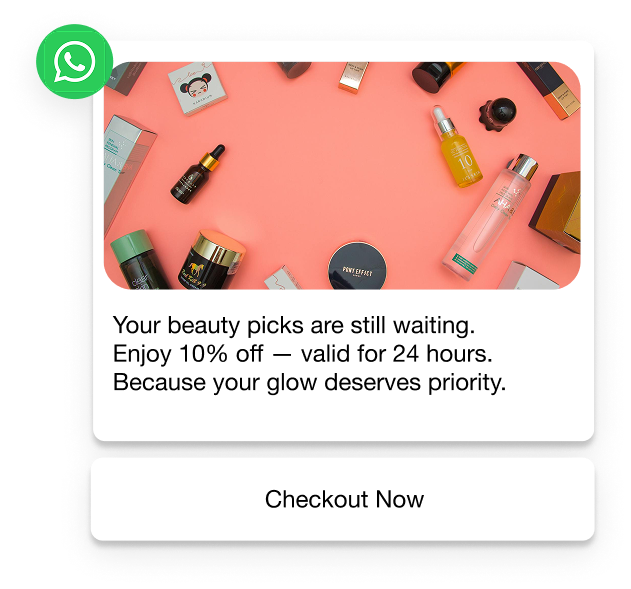
Instead of intrusive pop-ups, the Flowcart Shopify plugin uses intent-based WhatsApp banners (also known as dynamic pop-ups) and WhatsApp. This allows you to capture leads through a platform with a 98% open rate and to automate the entire discount process.
Here is how to set up a high-converting WhatsApp commerce discount pop-up process with Flowcart.
How to Set Up Your Dynamic WhatsApp Welcome Flow
The goal here is simple: give first-time visitors a reason to chat with you by offering a Welcome Discount.
📌Must Read: How to Connect Your Shopify Store to WhatsApp with the Flowcart Plugin?
1. Activate the Discount Flow
Inside your Flowcart Shopify Plugin, navigate to Flows. Select the Shopify section, then locate the First-time WhatsApp user discount. Click Activate.
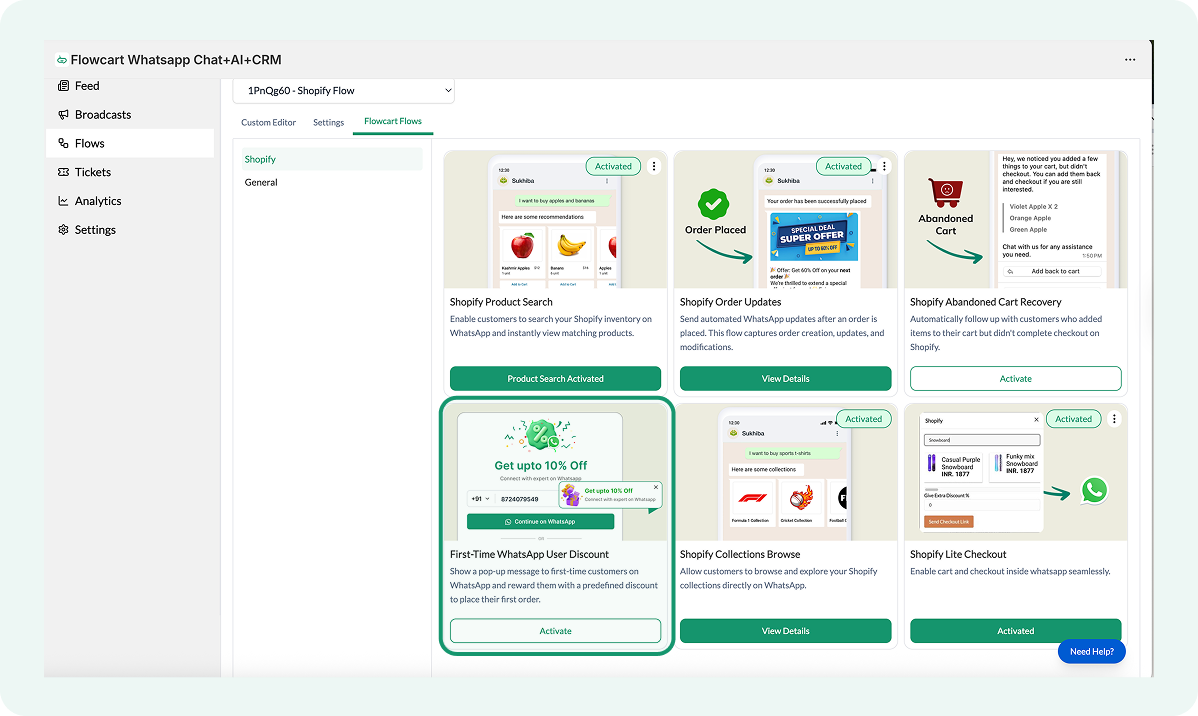
2. Configure Your Offer
You need an offer that makes a browser stop scrolling.
- Select Discount Type: Choose between a Flat amount or a Percentage
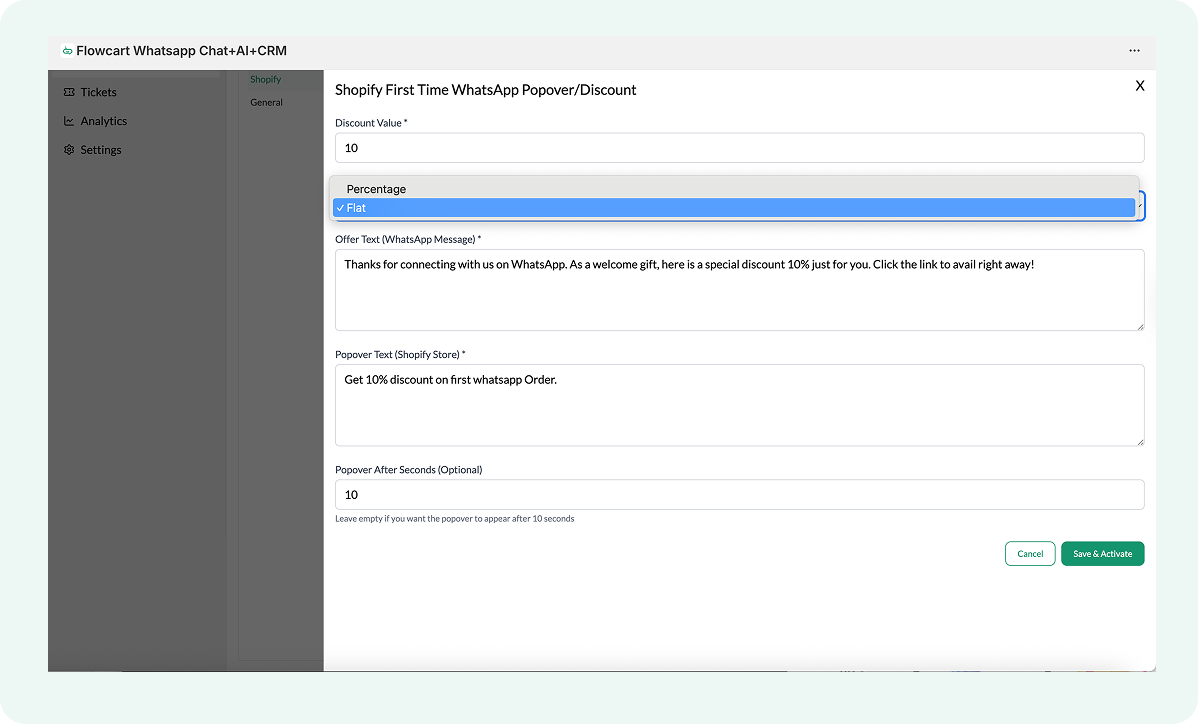
- Set the Value: Enter the number (e.g., 15 for 15% off)
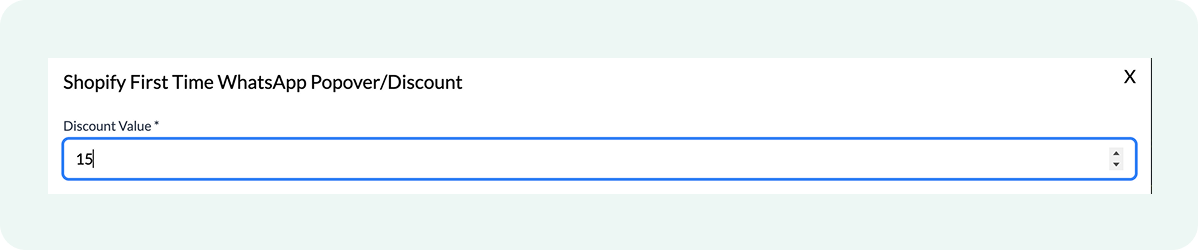
💡Pro Tip: Start with a modest offer. You can always increase it later if you want to aggressively grow your list.
3. Customize the Messaging
This is where you make the interaction feel human.
- WhatsApp Message: Edit the text the customer will see when they open the chat. Keep it short and focus on the code
- Popover Text: This is the small teaser that appears over the WhatsApp icon on your site. Use a clear benefit, such as ‘Get 15% off via WhatsApp’
📌Important: Writing these messages to match the pulse of the reader can be tricky. Schedule a demo with the Flowcart team to understand how Shopify pop-up messages can deliver meaningful results and to see how this feature works in the bigger ecosystem.
4. Set the Timing
You don't want the offer to appear the millisecond someone lands on your site. Instead, let them see what your store offers, then present the incentive.
- Go to the Display Delay field
- Set a timer for a few seconds
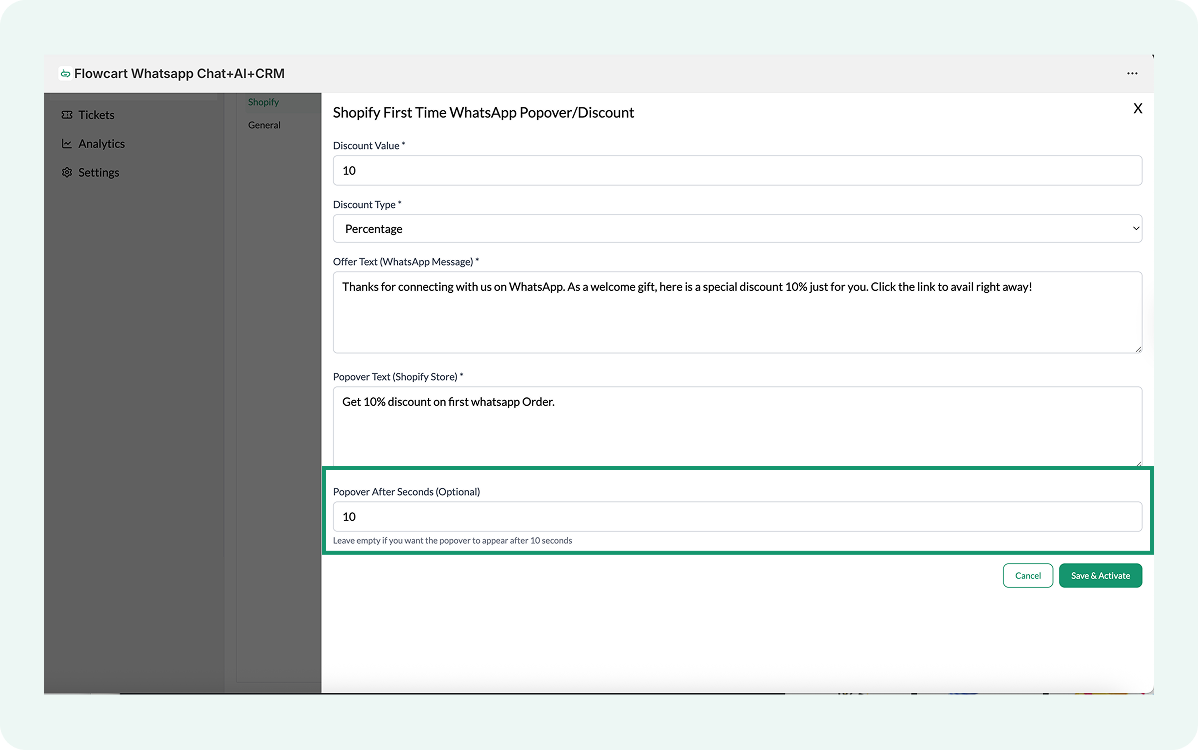
📌This gives shoppers enough time to look at your products before you offer them a deal.
Other Options: Traditional Pop-up Methods
If your region does not allow WhatsApp popups, or if you prefer a more traditional approach, you can use one of these three paths.
Method 1: Use Shopify Forms (The Built-In Way)
Shopify Forms is a free app created by Shopify. It is the most reliable way to add a basic Shopify pop-up without slowing down your site with heavy third-party code.
- Install the App: Go to the Shopify App Store and click Install
- Enable App Embeds: Before your form appears, you must grant it permission in your theme.
- Go to Online Store > Themes
- Click Customize on your active theme
- On the far left sidebar, click the App embeds icon (it looks like a small square with a blue dot)
- Set the Forms switch to On, then click Save
- Create Your Pop-up: Go to Apps > Forms in your Shopify admin
- Click Create form and select Pop-up form
- Give your form a name (e.g., Welcome Discount)
- Configure Appearance & Behavior:
- Display: Choose Overlay (center screen) or Floating (corner of the screen)
- Triggers: In the Behavior section, choose when it appears (e.g., On the first page view with a 10-second delay).
- Exit Intent: Check the box for Show form when visitors attempt to leave the page to catch customers before they drop off.
- Activate: Click Save, then click the Turn form on button at the top of the page
Method 2: Use Your Theme Settings (Fastest Setup)
Many modern Shopify Themes (such as Dawn, Sense, or paid themes from the Theme Store) include a built-in pop-up feature.
- Enter the Editor: In your Shopify Admin, go to Online Store > Themes and click the Customize button
- Locate the Pop-up Section: In the left-hand sidebar menu, scroll to the very bottom
- Look for a section named Pop-up, Modal, or Newsletter Pop-up
Note: If you don't see it there, click the Gear Icon (Theme Settings) on the left sidebar and look for a Pop-up tab.
- Customize the Content:
- Click on the Header block to change the text to something like Get 10% Off
- Upload an Image if your theme supports it
- Set Visibility Rules: Most themes allow you to ‘Show on home page only’.
- Adjust the Frequency (e.g., Show every 7 days) so returning customers aren't constantly interrupted
- Save: Click the Save button in the top right corner
📌Also Read: Shopify WhatsApp Integration: Complete Guide
Method 3: Use a Dedicated Pop-up App (For Advanced Features)
If you want gamified pop-ups or highly specific targeting, installing a third-party app is your best bet.
- Select an App: Open the Shopify App Store and search for ‘Pop-up’
- Install and Sync: Click Install
You will be redirected to the app's own dashboard.
- Choose a Goal: Select Grow Email List or Drive Sales
- Design the Template: Use their drag-and-drop builder to change the layout.
- Set Advanced Targeting: Go to the Display Rules tab
- Set the pop-up to show only to ‘New Visitors’ or to users with more than $50 in their cart
- Publish: Click Publish or Go Live
💡Pro Tip: As with Method 1, some apps require you to enable their ‘App Embed’ in your Theme Editor before they appear.
The Problem With Traditional Pop-ups
While the methods above get the job done, they often share the same flaw: they interrupt the shopping experience. Traditional pop-ups assume that every visitor wants to be interrupted by a giant box in the middle of their screen.
In reality, most first-time visitors are just window shopping. When they see an intrusive pop-up, they close the tab and forget your brand exists. If you want to grow your contact list, you need a method that feels like a conversation, not a commercial.
Best Practices for Shopify Pop-ups
Whether you use a standard pop-up or the Flowcart Shopify Plugin, success depends on how well you respect the visitor’s journey.
Here are the Shopify best practices to keep your conversion rates high and your customers happy:
- Prioritize a single call-to-action: Avoid overwhelming visitors by showing multiple overlays at once
▶️ If you activate a Flowcart WhatsApp banner, disable your theme’s built-in newsletter pop-up to keep the screen clear.
- Optimize your trigger timing: Monitor your bounce rate to ensure your pop-up isn't appearing too early
▶️ If visitors leave the second a box appears, increase the delay to give them a few seconds to browse your products first.
- Lead with a clear incentive: Frame your offer as a reward rather than a request
▶️ Trade generic phrases like ‘Join our newsletter’ for high-value offers like ‘Get $10 off your first order’ to give visitors a real reason to subscribe.
- Design for the mobile experience: Verify that your banners do not obstruct the entire screen on mobile devices
▶️ Keeping your pop-ups thumb-friendly and easy to close prevents user frustration and protects your store from SEO penalties.
- Match your brand’s visual identity: Use the same fonts, colors, and tone of voice found across the rest of your store
▶️ A pop-up that looks like a natural extension of your site builds more trust than one that looks like a generic third-party add-on.
Move Beyond the Standard Pop-up
Choosing the right way to add Shopify pop-ups to your store is only the first step. While the standard methods get you live, the real goal is to turn those views into a list of customers you can actually reach.
Switch to an intent-based approach: stop interrupting the shopping experience and start initiating conversations.
If you’re ready to move away from easy-to-ignore emails and start building a direct line to your customers, the Flowcart Shopify Plugin can help. It replaces the usual clutter with high-energy WhatsApp flows that capture leads and automatically apply discounts.
Install the Flowcart Shopify Plugin today to start converting your window shoppers into a community of loyal buyers.
FAQs
What pop-ups are popular on Shopify?
The most popular formats include welcome offers for new visitors, exit-intent discounts that appear when someone is about to leave, and sticky bars at the top of the page for free shipping announcements.
Why are WhatsApp conversions better than email pop-ups?
Most email pop-ups are a one-way street: the user provides an address, and the interaction ends. A WhatsApp opt-in initiates a two-way conversation. It allows you to send automated, high-energy messages and answer questions in real time, making the entire experience feel like a guided shopping session.
What is the difference between a static pop-up and a dynamic one?
A static pop-up displays the same message and offer to every visitor, regardless of what they are viewing. A dynamic pop-up uses intent-based logic to change based on user behavior. For example, showing a different incentive to someone looking at a high-ticket item versus someone browsing a sale collection.

.png)




%201.webp)



.png)