.png)
.png)

.png)
Key Takeaways
- Understand how WhatsApp template categories, structure, and approval rules impact delivery, quality, and long-term performance.
- Access 20 ready-to-use Marketing, Utility, Support, and Authentication templates built for real WhatsApp sales and retention journeys.
- Learn how Flowcart stores, reuses, and tracks WhatsApp templates across flows to improve conversions and reduce template failures.
There was a post in Reddit’s WhatsApp API community: a team repeatedly observed their templates being blocked for “poor quality,” even though everything on the surface appeared fine.
Messages were going out. Customers were replying. Read rates were healthy. But because Meta didn’t register those replies, the system treated the templates as failing and shut them down.

Source: Reddit
That’s how fragile WhatsApp templates can be. One overlooked WhatsApp message format rule, and an entire flow goes dark. This guide exists to prevent that kind of break. It lays out how WhatsApp Business Message Templates work today, what Meta checks behind the scenes, and how to write messages that stay compliant while delivering value.
And to make it easier, you’ll find 20 templates built for real conversations, so your team can move faster without risking another block.
What Are WhatsApp Business Message Templates?
WhatsApp templates are central to how businesses communicate on the platform. They’re pre-approved message formats that let you reach customers outside the 24-hour service window, something regular messages can’t do. If you want to send an order update at midnight or trigger an abandoned-cart reminder, you need a template.
Meta reviews these structured messages before you’re able to send them. Once past that stage, you can reuse them, personalize them with variables, and plug them into automations for sales, support, and marketing flows.
Templates exist for a simple reason: WhatsApp wants to keep the channel clean. Every message undergoes a quality check to prevent spam and maintain trust, so formatting errors, mismatched placeholders, or unclear intent can result in rejection or blocking.
Also Read: WhatsApp Webviews: Complete Guide
WhatsApp Message Template Categories
Meta sorts templates into four groups:
- Marketing: Offers, product pushes, win-back messages, and general promotional nudges. These carry the broadest use cases and, as a result, the strictest scrutiny and higher costs.
- Utility: Transactional updates, including orders, invoices, reminders, account alerts, and support notes. These tie directly to user actions.
- Authentication: OTPs and verification flows. The structure here is fixed for security.
- Service: Customer service interaction-related messages; however, they’re much rarer since most service replies fall inside the 24-hour window.
How Templates Are Built
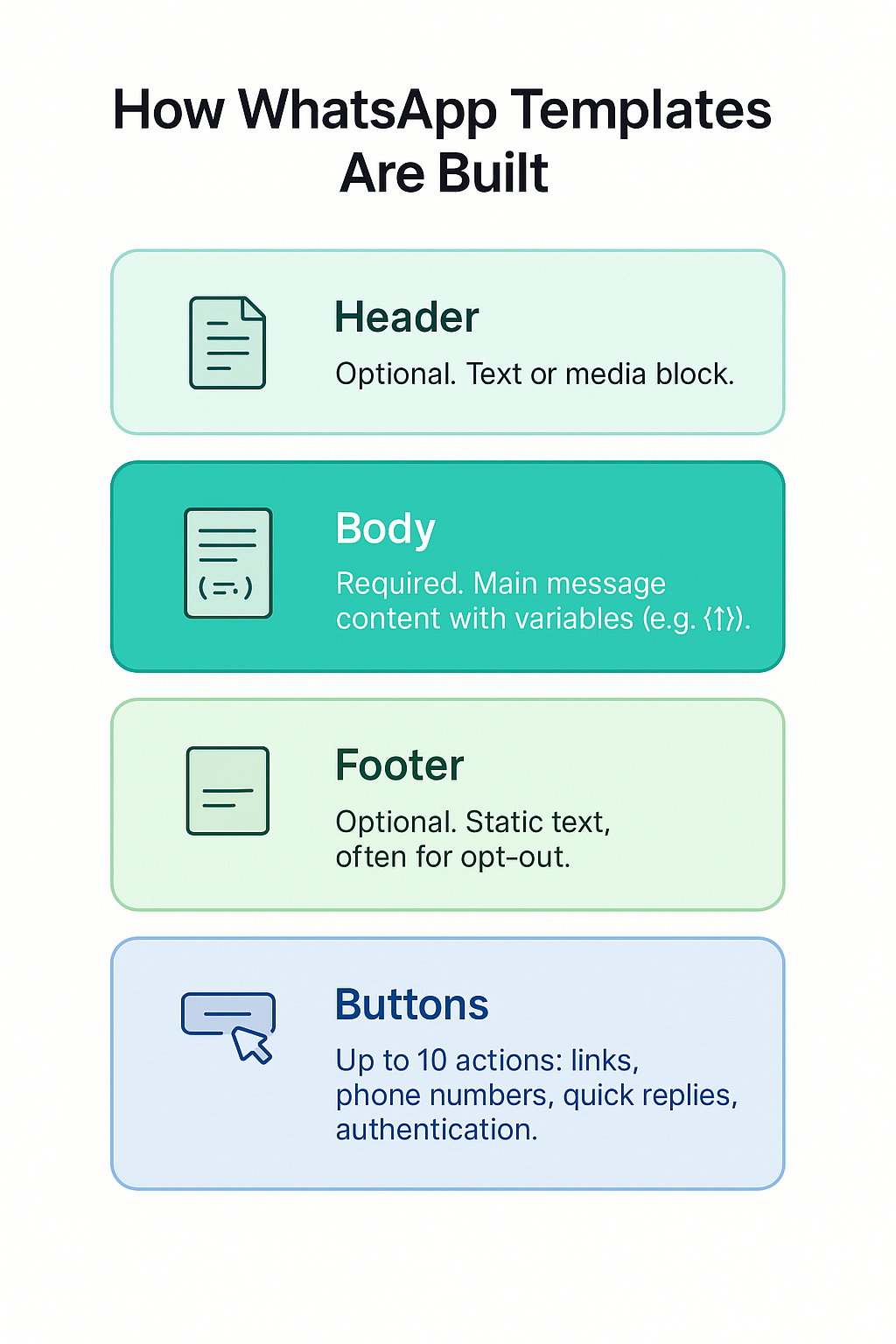
A sneak peek into how WhatsApp message templates are designed
Each part of a WhatsApp template message carries its own weight, both in how the message reads and how Meta evaluates it.
- Headers work well when they add clarity or visual context, but unnecessary media can slow approval.
- The body is where most issues appear: variable placement, length, and tone directly influence quality scores, so keeping it tight and predictable helps avoid rejections.
- Footers are useful for compliance notes or opt-out lines that would be distracting if placed in the main text.
- Buttons make the message actionable; they need to align with the template's intent; mismatched CTAs or too many options can trigger moderation flags.
Understanding the role of each component and the common pitfalls associated with them gives your team a better chance of creating templates that are approved quickly and perform well once they’re live.
💡A quick note before we move on to WhatsApp message template examples
Not every WhatsApp template message needs all four components. The body is the only mandatory part; headers, footers, and buttons are optional and should appear only when they clarify intent or guide the user to the next step. Simple structures tend to be approved faster, which is why some of the templates below rely solely on the body.
Why the 24-Hour Window Matters
After a customer writes to your business, you have a 24-hour window to respond without templates. Once that window closes, templates become the only way to continue the conversation. Each new customer message resets the timer.
This rule shapes almost every WhatsApp automation, from onboarding sequences to COD reminders, because timing determines whether your message is delivered.
20 Ready-to-Use WhatsApp Business Message Templates
Here’s a list of ready-to-use WhatsApp Business message templates. You’ll see four categories: Marketing, Utility, Support, and Authentication, because Meta reviews templates differently based on purpose. Using the right category does half the work; writing within its boundaries does the rest.
💡How WhatsApp Template Message Variables Work
Templates often include placeholders like {{1}} or {{2}}. These act as dynamic fields that are filled when the message is sent: names, order numbers, dates, payment amounts, and any other customer-specific information. Each variable must sit within the sentence, not at the beginning or end, and the numbering must remain consistent with how your system maps data.
These placeholders matter for approval. If the variables are too vague, placed incorrectly, or used to mask promotional content within a transactional template, Meta flags the transaction. Keeping them predictable and tied to an explicit customer action improves both approval speed and delivery quality.
Marketing Templates
Marketing WhatsApp message templates start new conversations or introduce new ideas. Meta is strict with them because they carry the highest risk of spam. The safest approach is to keep the message grounded in value, make the CTA predictable, and avoid dramatic wording. Marketing templates work well for launches, offers, win-backs, restocks, and product nudges.
1. Product Launch Announcement
This template introduces a new product without overstating claims.
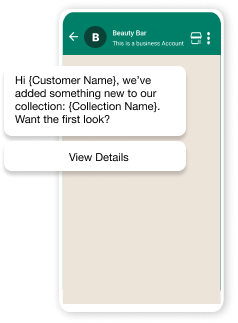
Approval notes: Keep the message neutral and factual. Avoid exaggerated claims or urgency language.
2. Limited-Time Offer
Short promo templates perform well when the value proposition is clear.
Template:
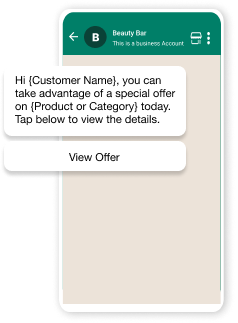
Approval notes: Avoid stacking multiple CTAs. WhatsApp prefers one clear action for offer-based templates.
3. Price Drop Alert
Useful for ecommerce and D2C brands.
Template:
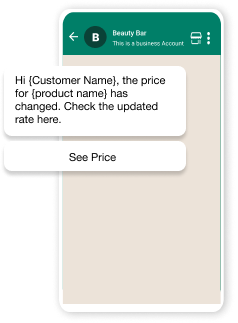
Approval notes: Ensure the button URL leads directly to the product.
4. Welcome Message for New Subscribers
Triggered after a user opts into notifications.
Template:
Hi {{1}}, thanks for joining us. Here are a few things you might like: {{2}}.
Button: Explore
Variables:
- {{1}} → Customer name
- {{2}} → Curated category or collection
Approval notes: Welcome messages count as marketing if they include recommendations.
5. Back-in-Stock Notification
A high-intent promo that often converts well.
Template:
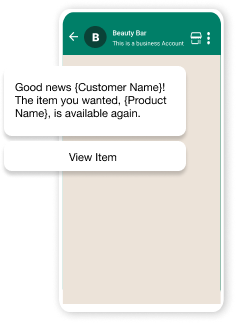
Approval notes: Tie the message to prior interest to help avoid quality downgrades.
Must Read: Texting Your Sales Down the Drain: WhatsApp Selling Mistakes to Avoid
Utility Templates
Utility templates handle the operational side of the relationship, like order updates, shipping alerts, appointments, invoices, and account changes. Meta approves utility messages quickly because they’re tied to a customer action. Clarity is essential here, so avoid cross-selling, layered motivations, and self-induced friction.
6. Order Confirmation
Sent immediately after checkout.
Template:
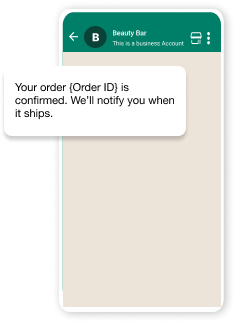
Approval notes: Keep transactional templates simple. Extraneous add-ons can shift them into the marketing category.
7. Shipping Update
One of the most commonly used utility templates.
Template:
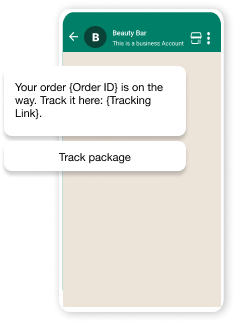
Approval notes: Always include a valid tracking link during send time to avoid high “blocked” rates.
8. Delivery Attempt Notification
Useful for COD and high-value parcels.
Template:
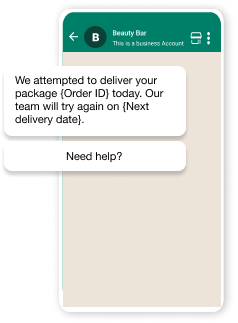
Approval notes: Avoid adding promotional content in follow-up delivery messages.
9. Payment Reminder (Pre-Due Date)
Works for SaaS billing, subscriptions, or COD confirmation.
Template:
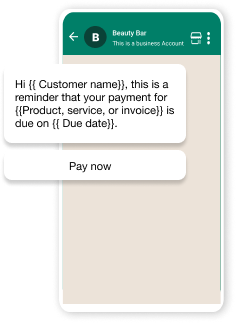
Approval notes: Meta reviews payment templates carefully, so having clarity and neutrality helps.
10. Payment Confirmation
Simple and high-trust.
Template:
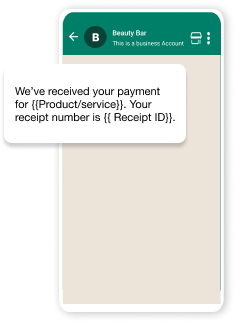
Approval notes: Avoid offering add-ons or upsells inside this message.
11. Appointment Reminder
Consistent across healthcare, salons, services, and B2B.
Template:
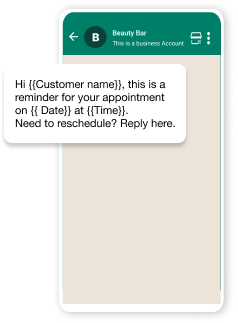
Approval notes: Scheduling templates are approved quickly when phrasing is neutral.
12. Account Update Notification
Common for SaaS onboarding and customer portals.
Template:
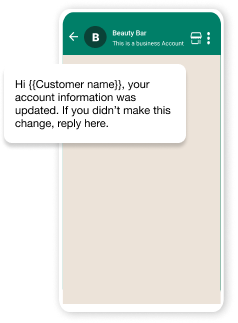
Approval notes: Adding reassurance text improves user trust and helps prevent account spam reports.
Support Templates
If a customer hasn’t replied within 24 hours, you need a template to reopen the conversation, which requires setting up support templates. They stay close to the problem: follow-ups, clarifications, resolution notes, or additional information requests. Any hint of promotional intent can result in the template being reclassified and rejected.
13. Follow-Up on Support Query
Useful when support tickets go cold.
Template:
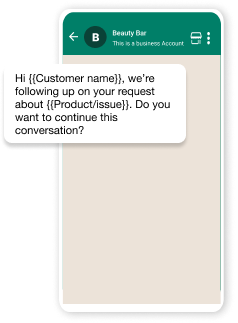
Approval notes: Must reference an existing ticket or prior interaction.
14. Issue Resolution Update
To confirm closure or invite further action.
Template:
Approval notes: Clear intent is crucial to keep this categorized under “utility/support,” not marketing.
15. Request for Additional Information
Used when support can’t proceed without user input.
Template:
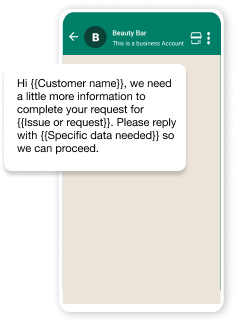
Approval notes: Avoid adding optional extras or suggestions; support templates must remain focused.
16. Ticket Closure Confirmation
Encourages clarity and reduces follow-ups.
Template:
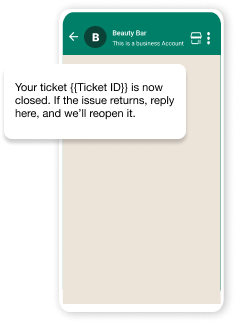
Approval notes: Keep the tone factual; avoid “thank you for choosing us” messaging.
Authentication Templates
Short, rigid, and intended only for secure flows such as OTPs and recovery codes. Authentication templates have almost no room for stylistic variation. The safest rule is: give the code, provide the instruction, and end the message.
17. OTP for Login
Cannot include marketing elements of any kind.
Template:
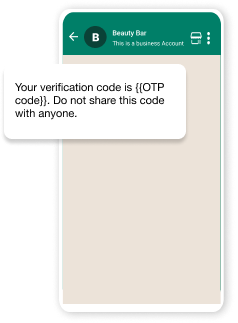
Approval notes: Authentication templates allow minimal variation. Keep them crisp.
18. Account Recovery Code
Used for password reset flows.
Template:
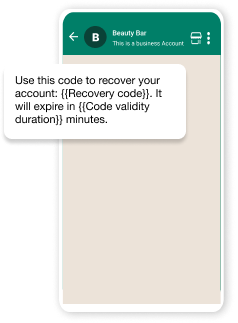
Approval notes: Avoid adding actionable links; recovery must stay instruction-based.
Re-engagement & Retention Templates
Re-engagement and retention templates help you restart conversations that have stalled, such as abandoned carts and customers who completed a purchase but never returned. Meta treats them as marketing messages, so the phrasing needs to be clear about its intent without leaning on urgency or pressure.
The goal is simple: remind the customer of what they left midway, offer a clear next step, and keep the message grounded in the context they already recognise. When implemented well, these customer engagement templates increase reply rates without compromising quality.
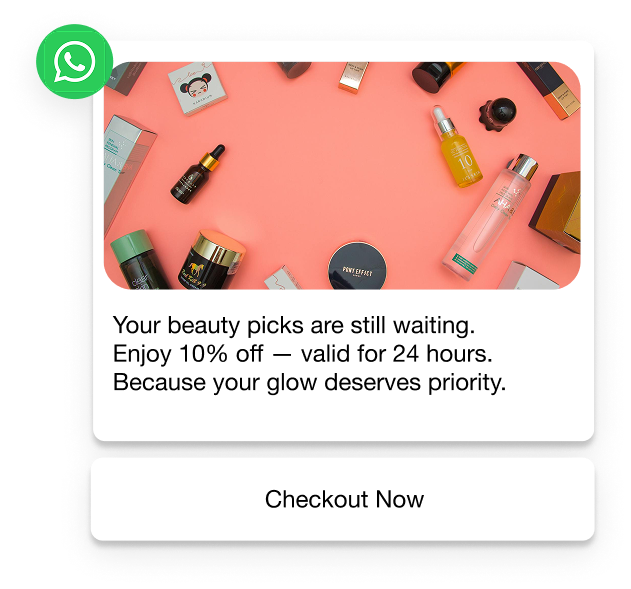
19. Abandoned Cart Reminder
One of the highest-converting templates when structured correctly.
Template:
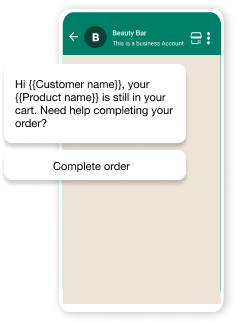
Approval notes: Limit the CTA to one. Multiple CTAs decrease the approval rate.
20. Feedback Request
Ideal immediately after delivery or service completion.
Template:
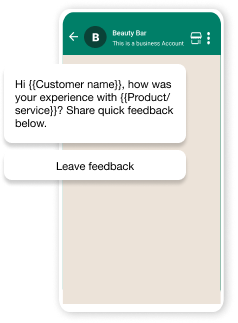
Approval notes: WhatsApp prefers neutral phrasing (avoid priming, such as “Rate us five stars”).
Next Read: How to Build Customer Loyalty Using WhatsApp Broadcasts
WhatsApp Template Approval Process: Step-by-Step
WhatsApp’s approval flow looks complex on paper, but the platform checks for the same three things every time: intent, structure, and compliance. When those are in order, most templates move through review in a few hours. Here’s the process in a clean sequence you can follow.
1. Start with the right category
Before writing anything, decide whether your message is Marketing, Utility, or Authentication. This decides how the template is evaluated and what language is acceptable. Promotional templates face stricter scrutiny; transactional ones move faster when the intent is obvious.
2. Create the template in WhatsApp Manager
Inside Meta Business Manager, open WhatsApp Manager → Message Templates → Create.
Your first choice is the category. Select the option that matches your message; otherwise, Meta will reclassify it and often reject it.
3. Name it in an Understandable WhatsApp Message Format
Use lowercase letters, numbers, and underscores only. Examples that work: order_confirmation or password_reset_otp.
Clear names help reviewers understand what you’re trying to send.
4. Select your language
Each language counts as its own template. The text must match the selected language; mismatches trigger immediate rejection.
5. Build the components (use only what you need)
Every template has a body. Headers, footers, and buttons are optional; add them only when they strengthen clarity or provide a direct next step.
- Header: Text or media, only if relevant.
- Body: The core message (placeholders allowed).
- Footer: Static text, often used for opt-out lines.
- Buttons: Quick replies or CTAs.
Simple templates get approved faster than heavily structured ones.
6. Format placeholders correctly
WhatsApp expects variables in this format: {{1}}, {{2}}, {{3}}, in order, with no gaps. They can’t appear as the first or last character of the message.
Note: Most rejected templates fail at this stage due to formatting issues.
7. Check for policy alignment
Stay away from exaggerated claims, unclear intent, or language that feels pressuring. While promotional wording is allowed, Meta is sensitive to anything that looks spam-like. For example, utility and authentication messages pass easily when they stick to facts.
8. Run a quick quality check
Read the message once as a user and once as a reviewer. For instance, you can ask yourself these questions:
- Does it make sense?
- Are the placeholders stable?
- Does the message stay within character limits?
- Does the CTA match the intent?
9. Add sample data (when required)
If your template uses variables or media, provide realistic sample values. It helps reviewers see how the message will appear in the wild.
10. Track the status after approval
Approved templates undergo a quality phase in which WhatsApp monitors read rates, blocks, and reports.
- High Quality: No restrictions.
- Medium Quality: Useful but slipping, watch this closely.
- Low Quality: At risk of being paused.
- Paused / Disabled: Caused by repeated negative engagement.
Template quality depends on how well the users welcome the message.
💡Pro Tip: If engagement drops or users block the template, rework the tone, timing, or segmentation. Most quality issues come from sending the right message to the wrong audience.
This is the entire approval cycle in practice: plan the intent → build a clean structure → match the category → check compliance → submit → monitor performance. Templates that stay clear, relevant, and lightweight almost always move through review smoothly.
Additional Read: WhatsApp CRM Integration: A Guide for E-commerce Businesses
Best Practices to Create High-Converting Templates
High-performing WhatsApp templates don’t happen by accident. They work because the message is tailored to the right person at the right moment, using language that feels personal rather than promotional.
Use the checklist below to pressure-test your templates before you submit or send them.
Most teams can get a template approved once. The difference between average and high-performing WhatsApp programs is how well these checks hold up after launch, when volume increases, audiences diversify, and mistakes compound faster.
This checklist will help you write templates that work today without limiting how far your messaging strategy can scale tomorrow.
Read More: WhatsApp Lead Generation: Proven Strategies to Drive High-Quality Leads
How to Manage WhatsApp Templates in Flowcart
Flowcart treats templates as building blocks for your customer journeys. Every flow you create across acquisition, conversion, or retention starts with a template, so the platform gives you a simple way to store, organise, and attach them to any step of the journey.
- WhatsApp Flows: Store templates in a central library and attach them to any step in a flow. That means one approved template can be reused across multiple journeys without copying or manual edits.
- Click-to-WhatsApp Ads: Use templates as the first message users receive after clicking an ad. This lets you pre-fill variables (name, product, promo) and control the opening tone of the conversation.
- In-Chat Checkout: Link confirmation and payment templates directly to the checkout steps so transactional messages appear immediately after a purchase.
- AI-Generated Carts: Combine cart data with templates to display the exact items and prices automatically.
- Abandoned Cart Recovery: Pair recovery templates with predefined CTAs (one button) and timing rules to reduce false positives and avoid aggressive re-sends.
- Smart Broadcasts: Send approved templates at scale to segmented lists while preserving personalized variables and one-click CTAs.
- AI-Powered Segmentation: Target templates to the right audience slice (high-intent, lapsed, VIP) so quality metrics stay healthy.
- Loyalty Program: Use templates for points updates, reward confirmations, and redemption links so loyalty touches remain consistent and auditable.
Flowcart also gives you visibility into how each template performs once it’s live. You can see which messages drive replies, where drop-offs happen, and whether certain segments react differently to the same template. That level of granularity helps you refine copy, adjust timing, or switch to a different template before quality scores drop.
It also keeps your approval history, variants, and performance data in one place, so teams don’t lose track of what’s running across flows and broadcasts.
If you want to see how this looks inside an actual Flowcart workspace, a quick demo is the easiest way to get a sense of it. You’ll see the template library, flow builder, and real-time insights panel in action and understand how your team can manage everything without switching tools. Schedule a Flowcart demo today!
FAQs
How to create a WhatsApp Business message template?
You create templates inside WhatsApp Manager by choosing a category, adding your message components, and formatting variables correctly. Once submitted, Meta reviews the content to ensure it meets policy and quality standards.
Why are WhatsApp templates so important?
Templates let you message customers outside the 24-hour window and keep automations running without interruption. They also protect delivery rates by ensuring that every outbound message complies with Meta’s compliance rules.
How do I customize my WhatsApp messages?
Use placeholders like {{1}} or {{2}} to insert names, order details, or behavior-based data at send time. Flowcart automatically maps these variables, so each message feels personal without manual editing.

.png)




%201.webp)



.png)